
Hub operations
Hubs are the warehouses where food is stored, sorted, and staged for distribution. This guide covers day-to-day inventory management at a hub.
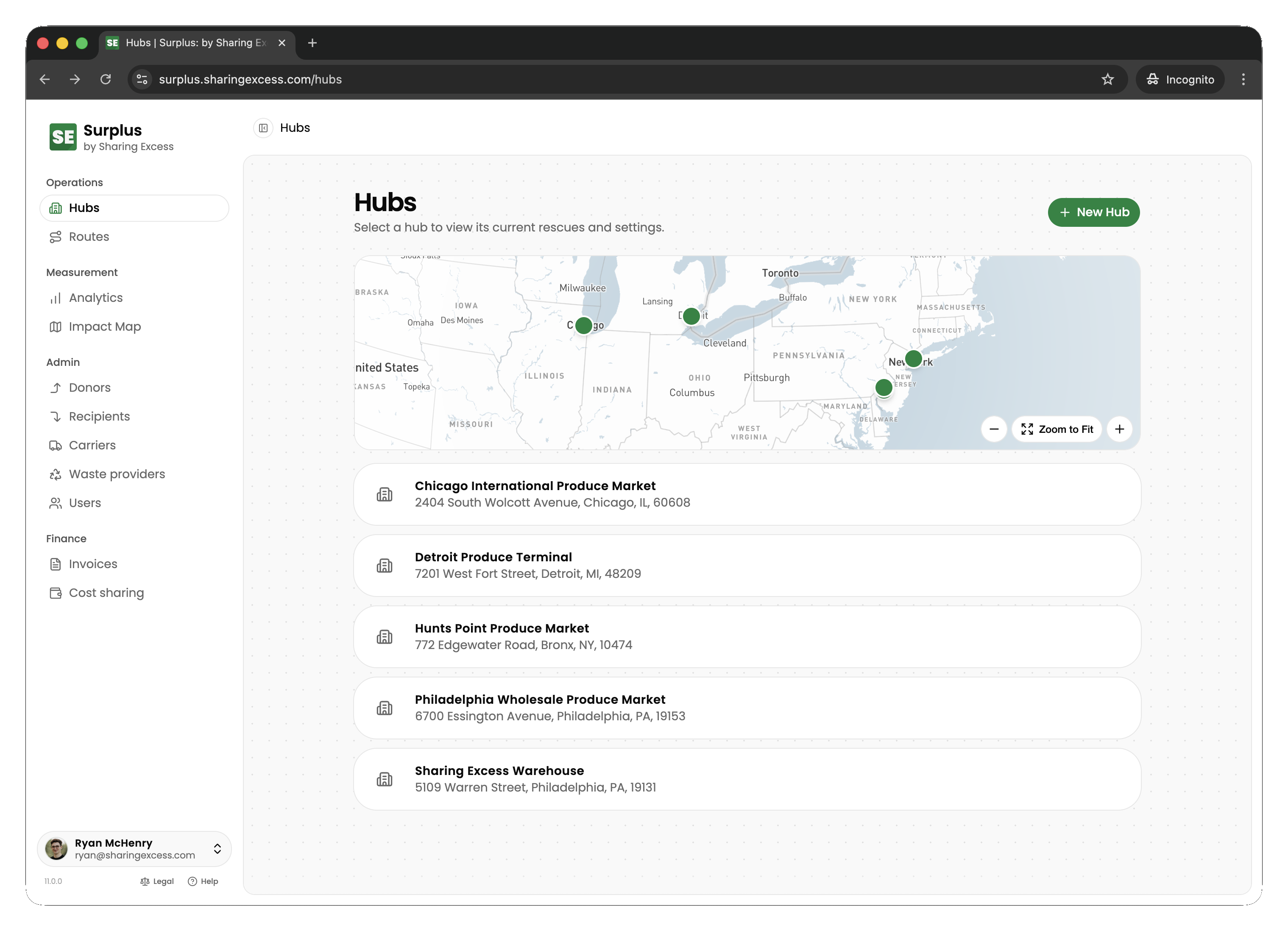
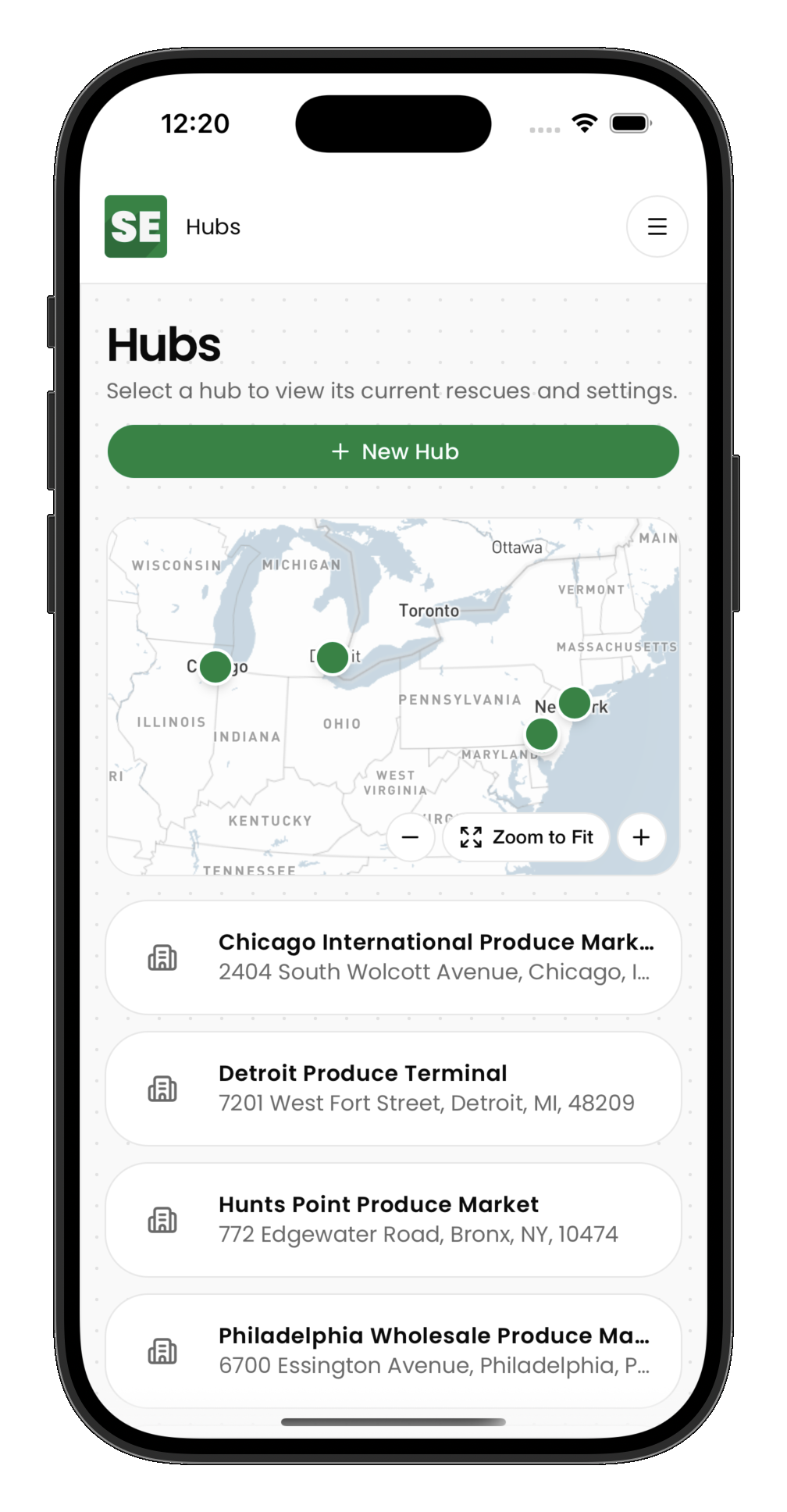
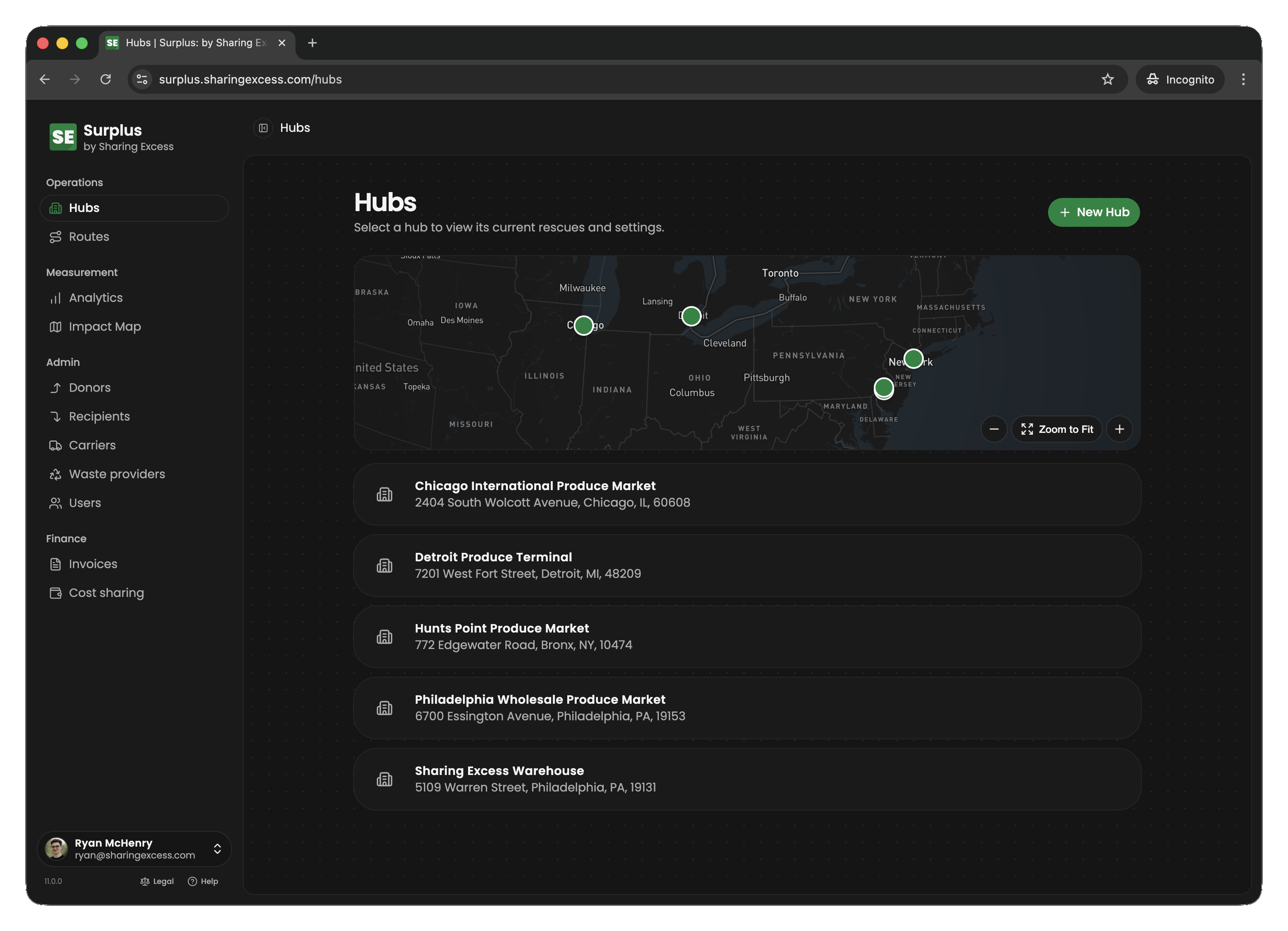
The hubs list
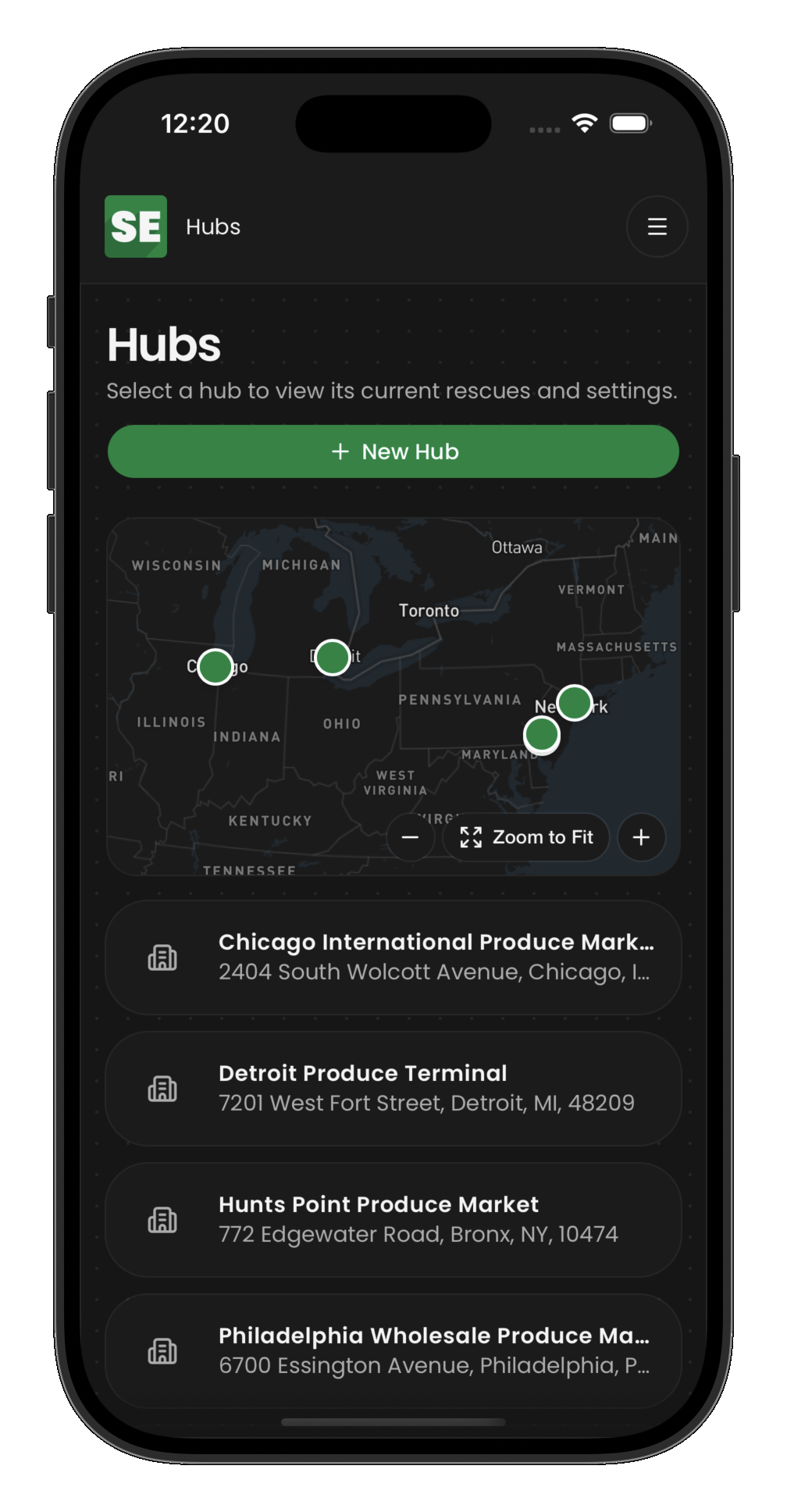
The hubs section shows all warehouses in the system. Select a hub to manage its inventory, collections, and distributions.
Hub inventory
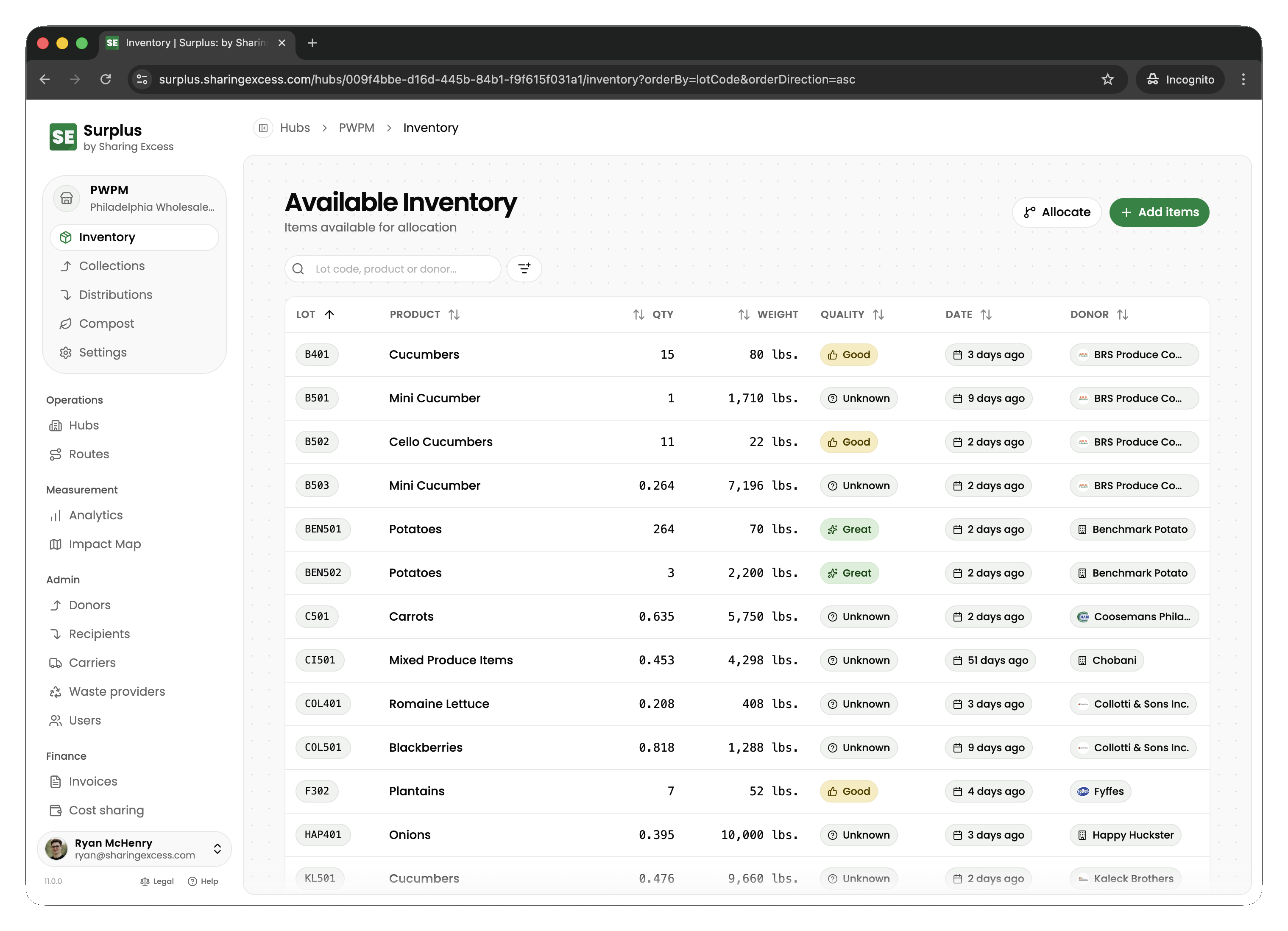
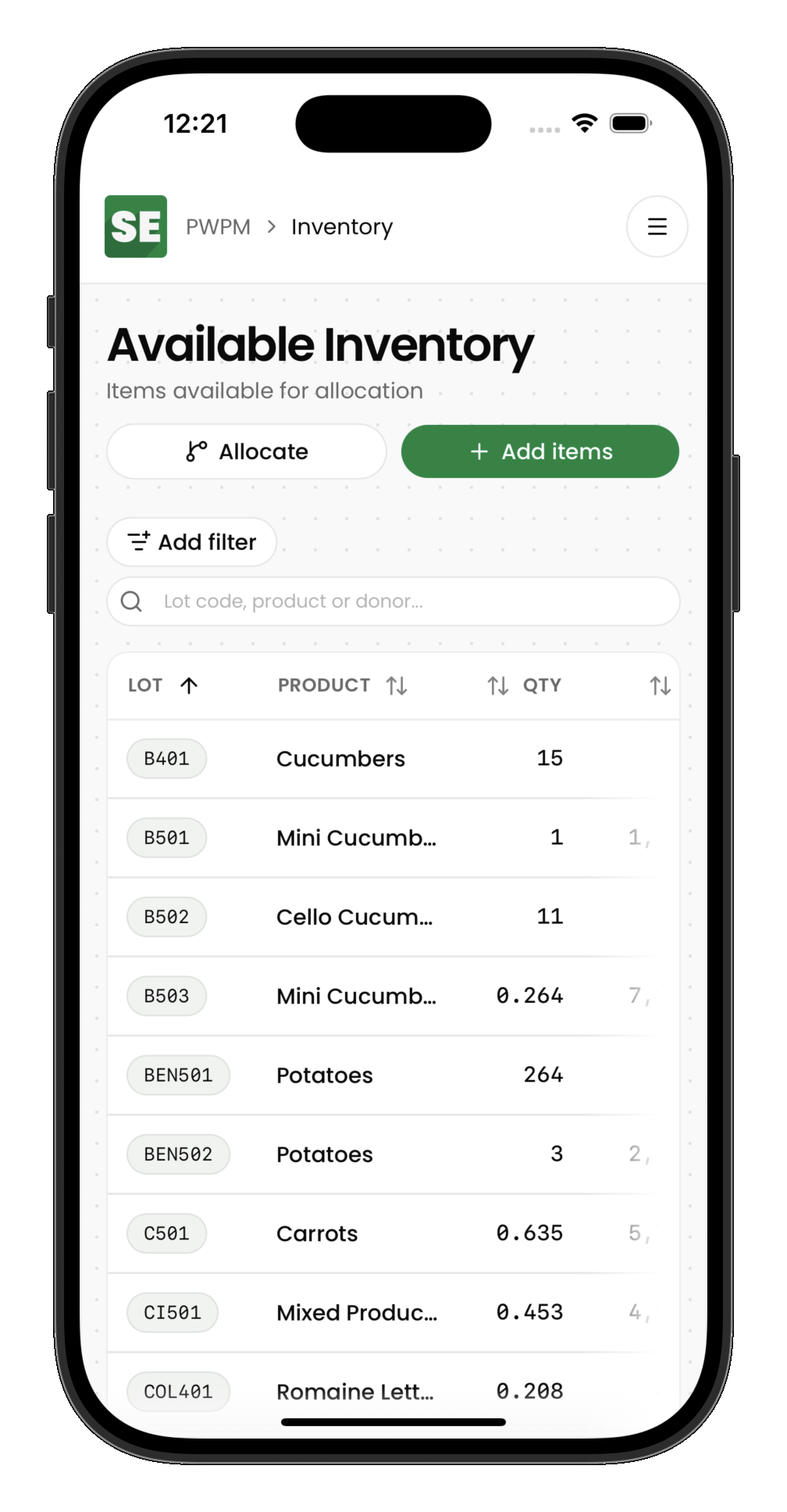
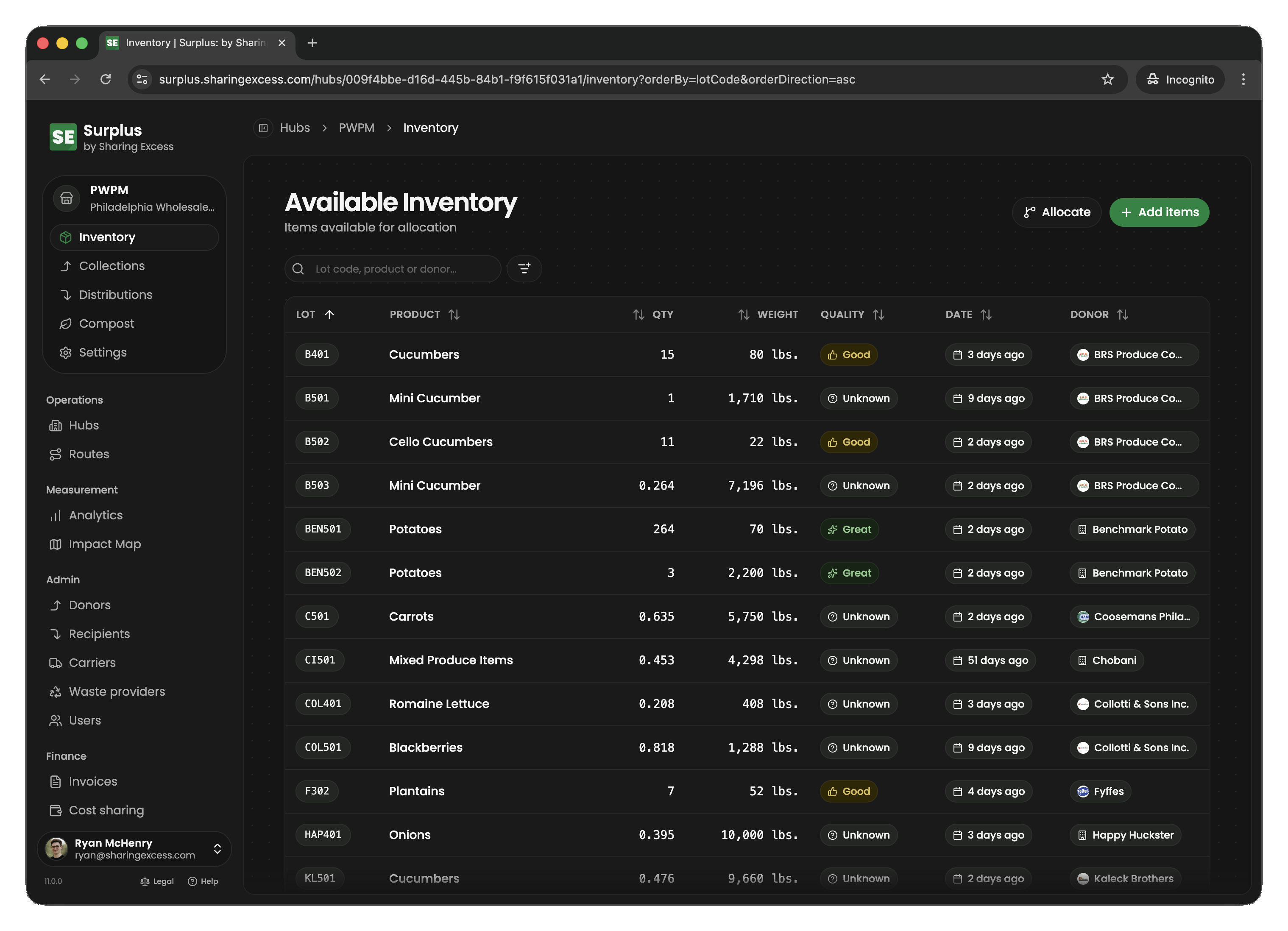
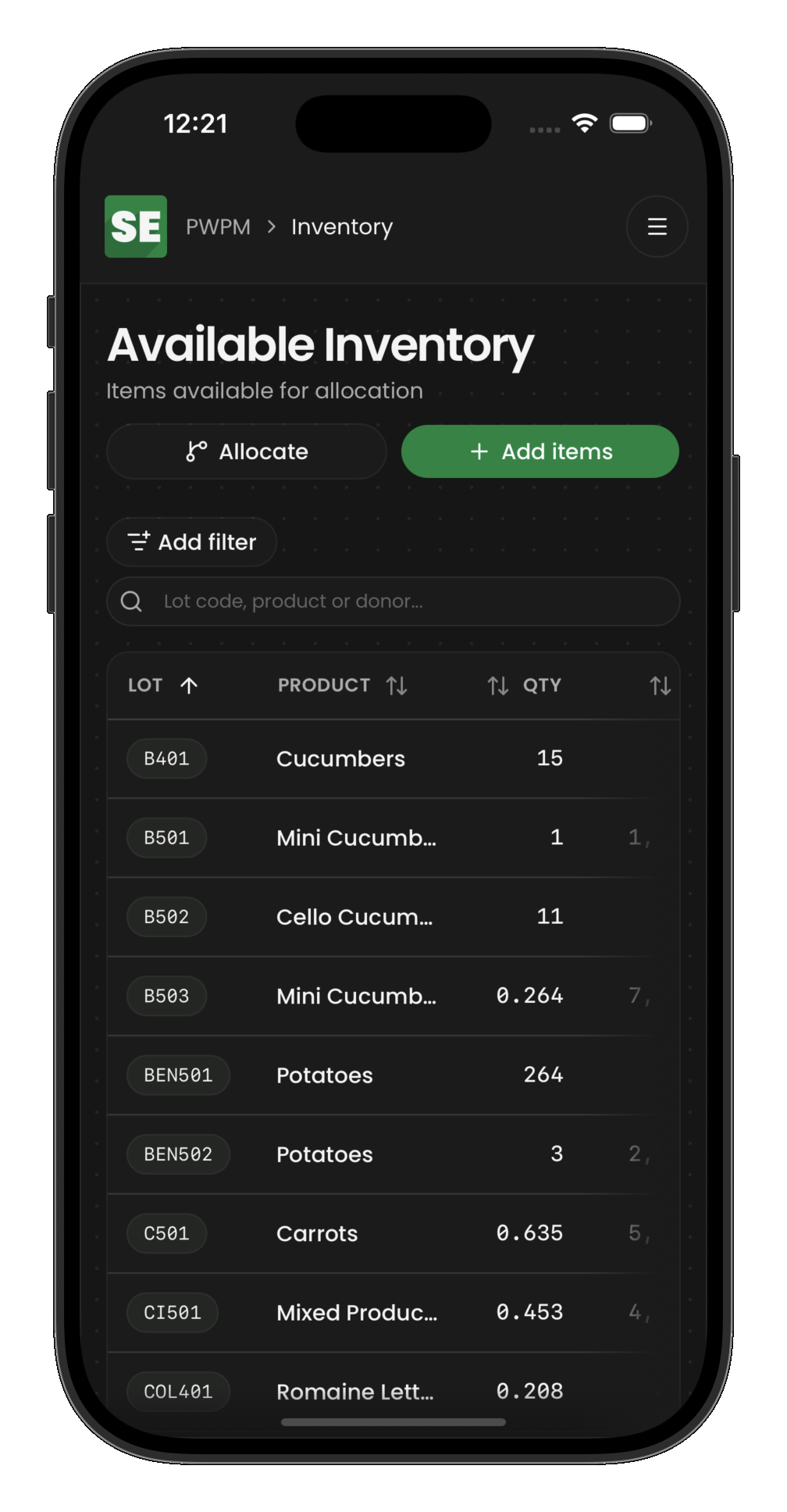
The inventory tab shows all items currently at the hub. Each item displays:
- Product name and category
- Quantity and weight
- Lot code (for tracking batches)
- Status (active, allocated, etc.)
Item detail
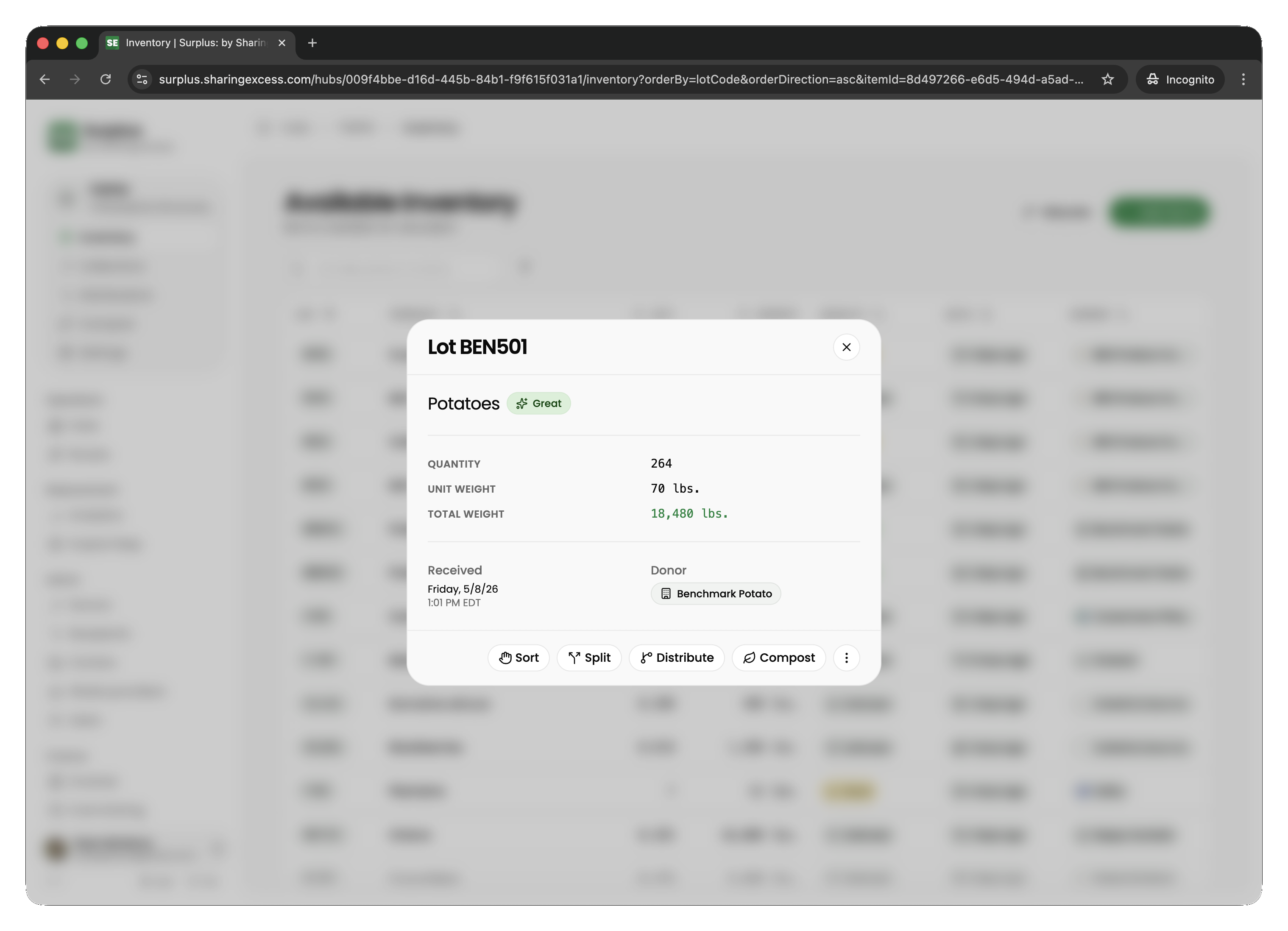
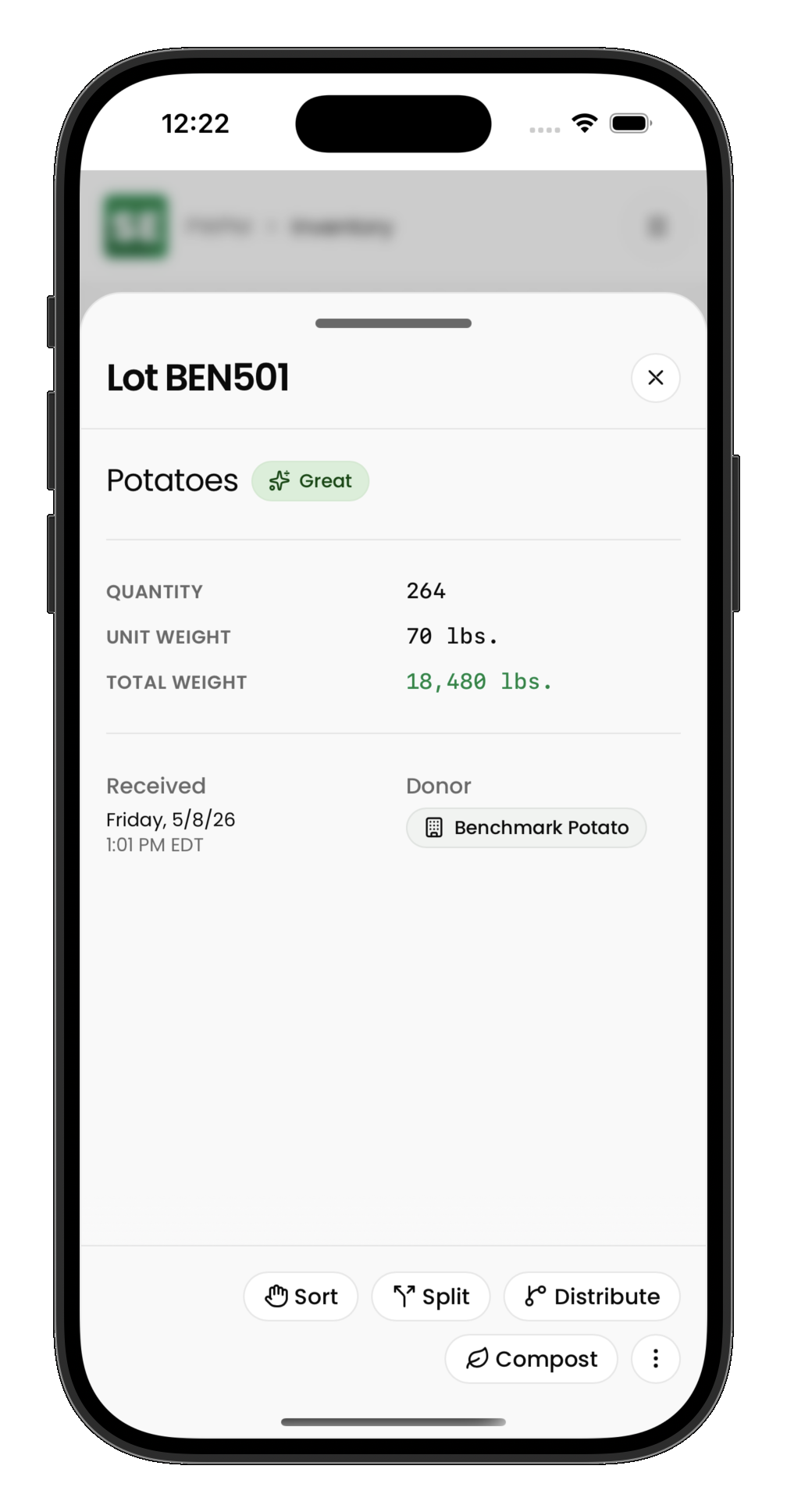
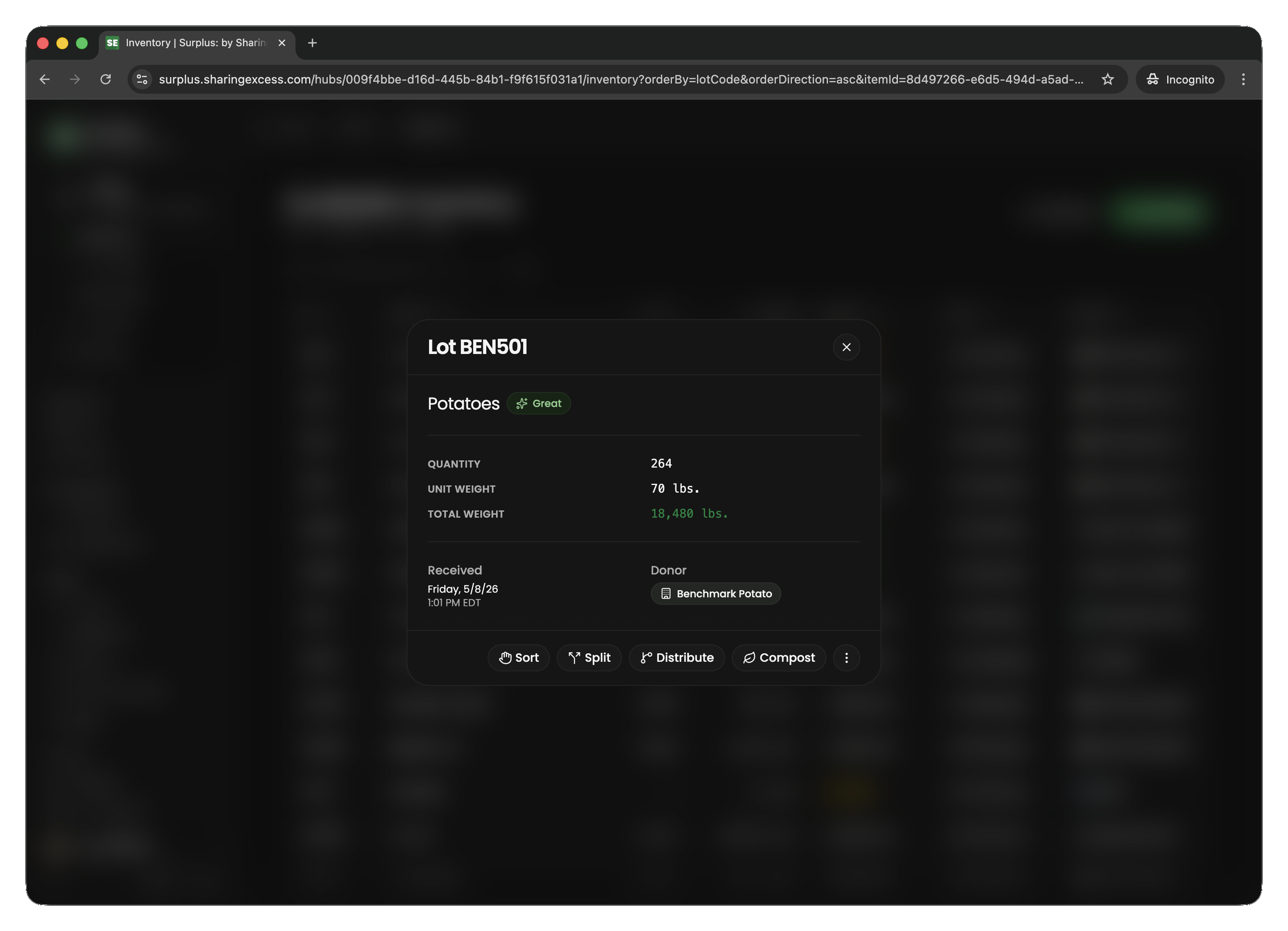
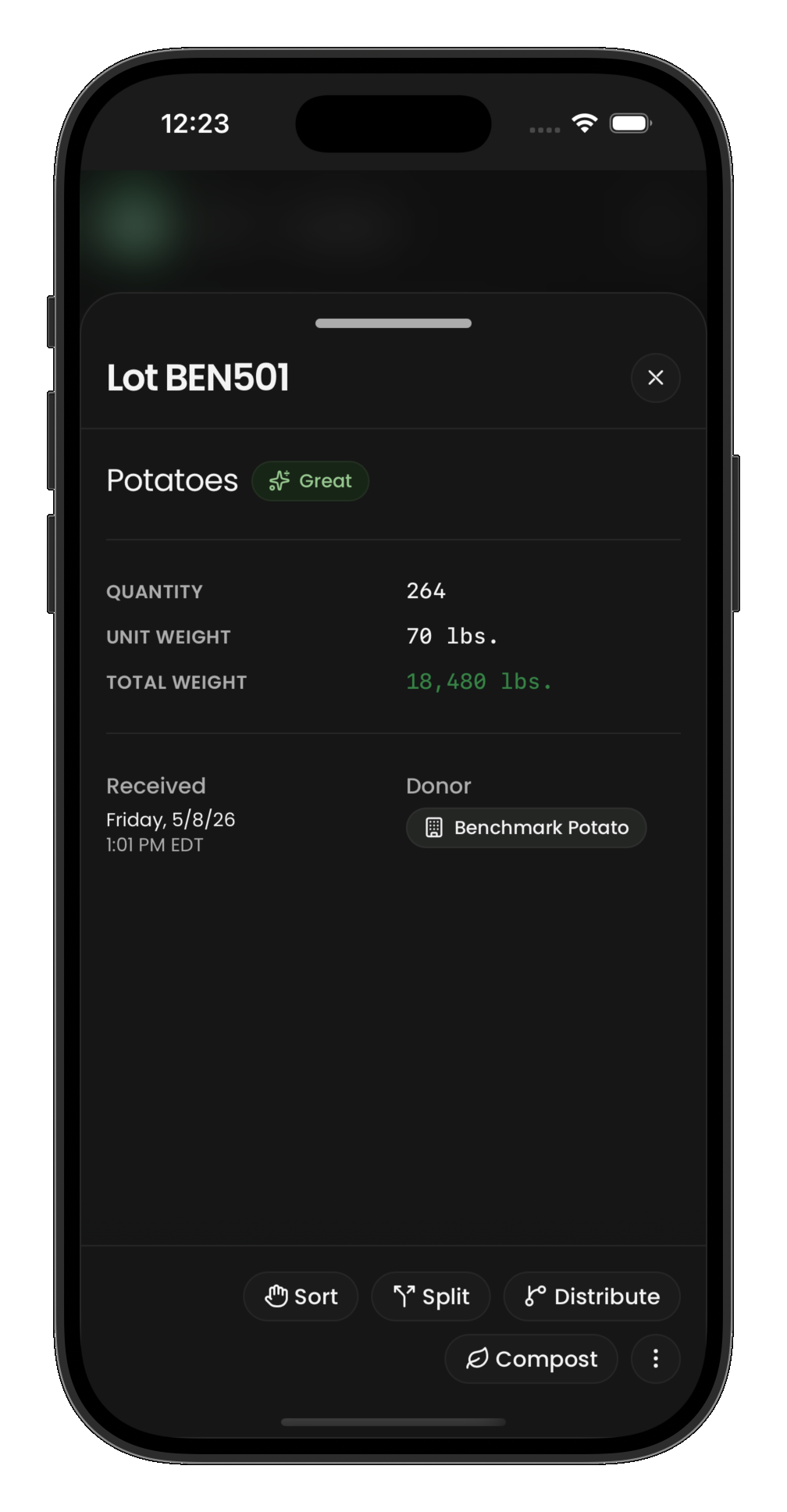
Tap any item to see its full detail and available actions:
Sorting items
Sorting is the process of weighing the usable portion of a food item separately from waste (trim). When you sort:
- Open an active item in inventory
- Choose Sort
- Enter the sorted weight (usable portion)
- The difference between original and sorted weight is automatically recorded as compost/trim
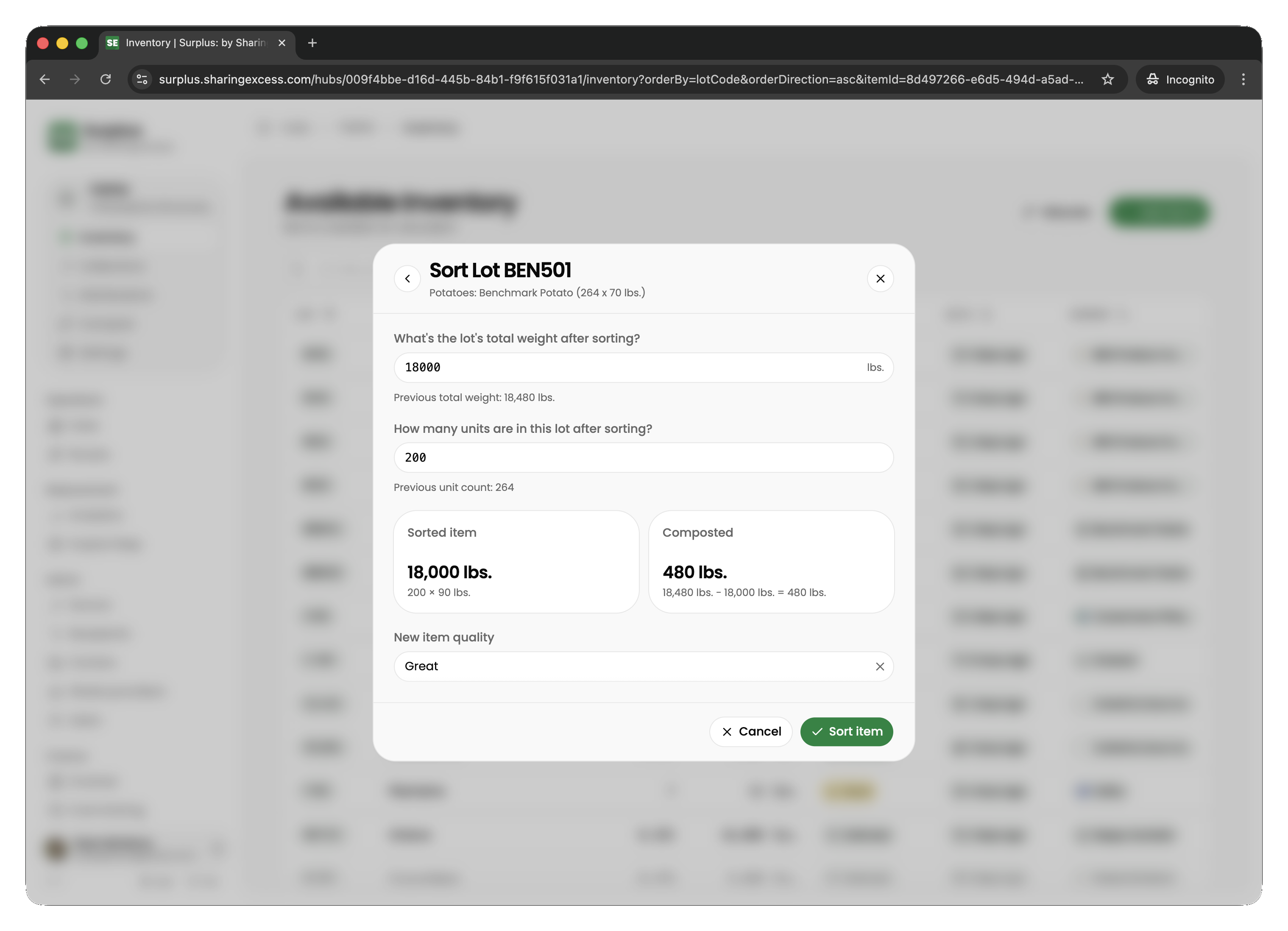
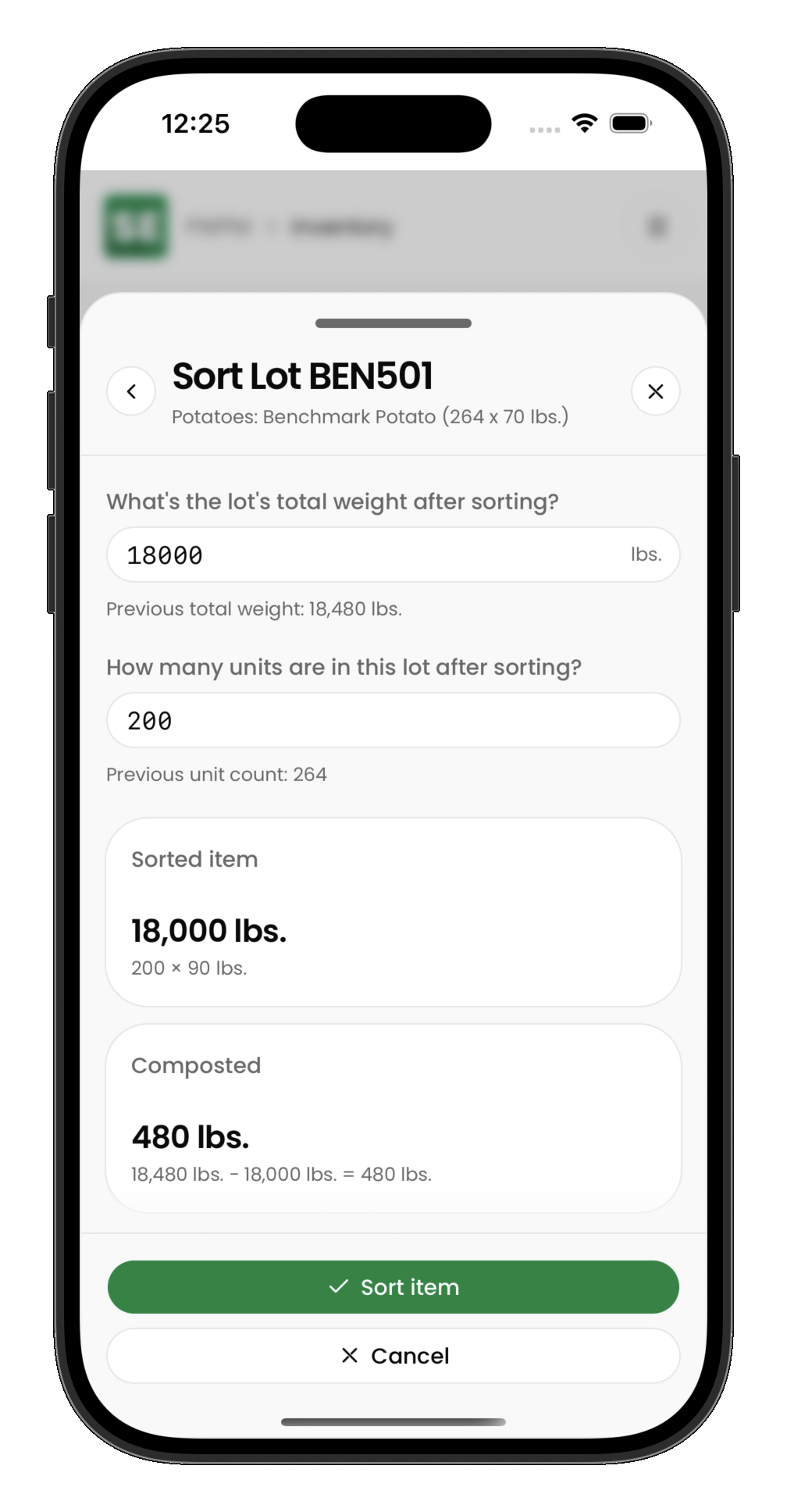
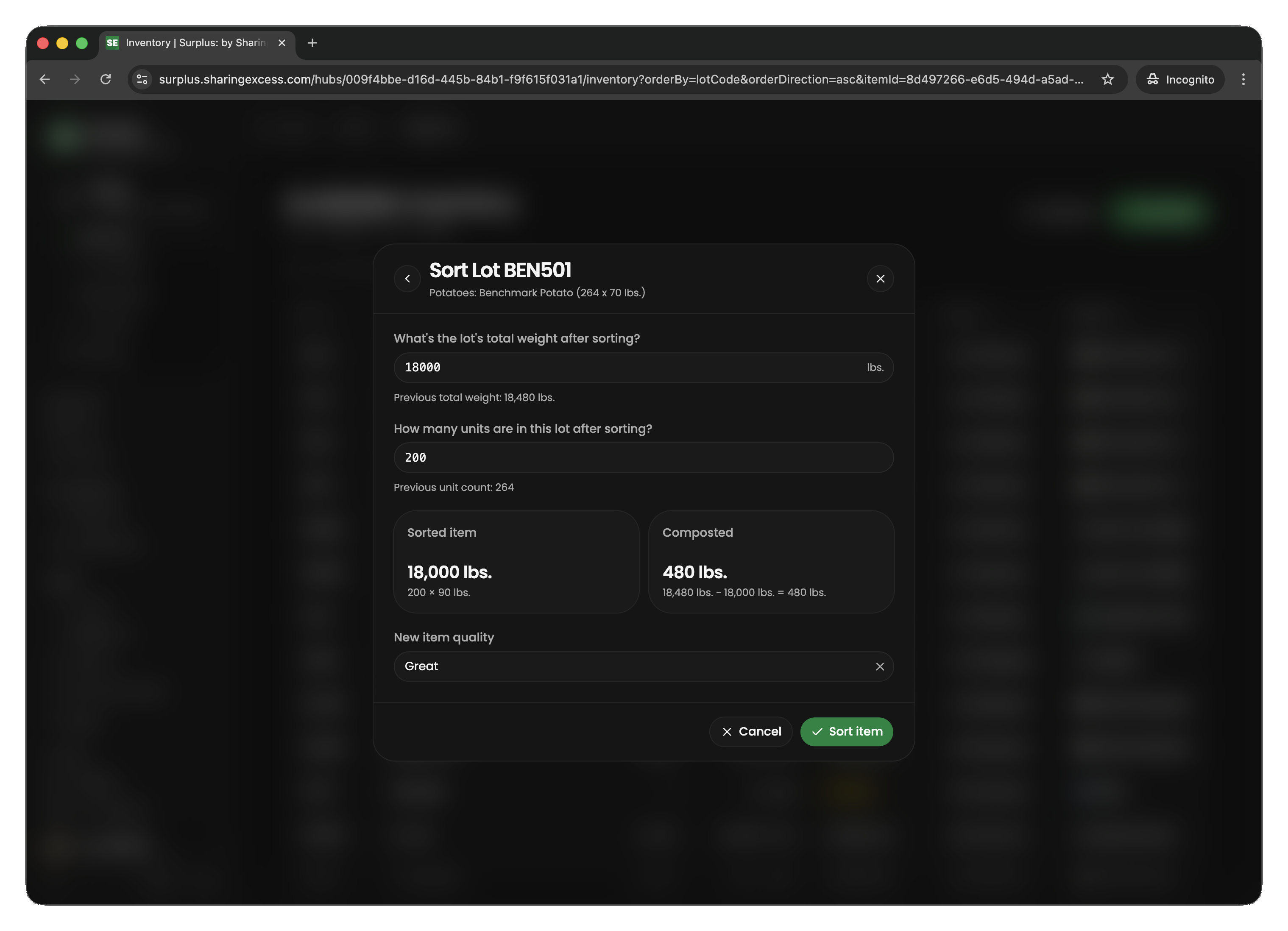
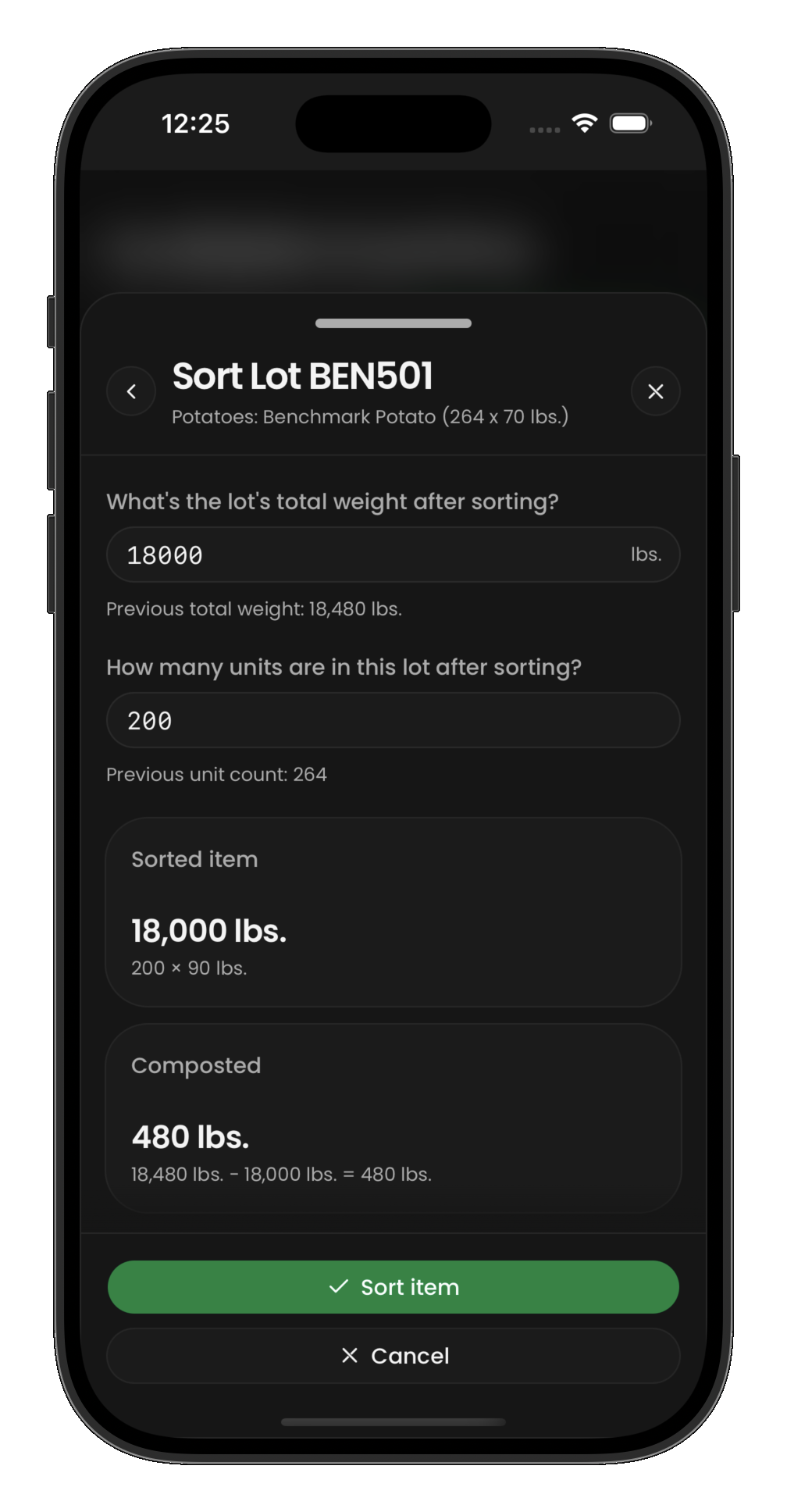
After sorting, the item is marked as isSorted and its weight reflects only the usable portion. The trim goes to the hub's configured compost partner as a completed compost event.
Splitting items
Splitting divides a single inventory line into two portions. Use this when:
- Part of a batch needs to go to a different destination
- You need to sort only a portion of a lot
- Items need to be repackaged into smaller units
Each split creates a new item row with its own lot code (auto-generated suffix), while the original row's quantity is reduced.
Transferring between hubs
To move inventory from one hub to another:
- Open an item in the source hub's inventory
- Choose Transfer Hubs
- Enter the quantity to transfer
- Select the destination hub
- Either create a new route (with load + unload stops) or attach to an existing route that connects both hubs
The transfer uses the standard load/unload flow: items are loaded at the source hub, travel on a route, and unload at the destination hub.
Editing quantities and weights
For items that haven't been sorted or allocated:
- Quantity changes adjust the donation line and all related item partitions
- Unit weight changes cascade to all unsorted partitions under that donation line
For sorted items, edits adjust only the sorted row and rebalance compost partitions to maintain conservation (total weight in = total weight out).
Item statuses at a hub
| Status | Meaning |
|---|---|
| Active | Available for allocation, sorting, or transfer |
| Allocated | Reserved for a specific distribution (not yet delivered) |
Items with status distributed or composted are no longer physically at the hub — they've left the system.