
GuidesAdmins
Hub collections
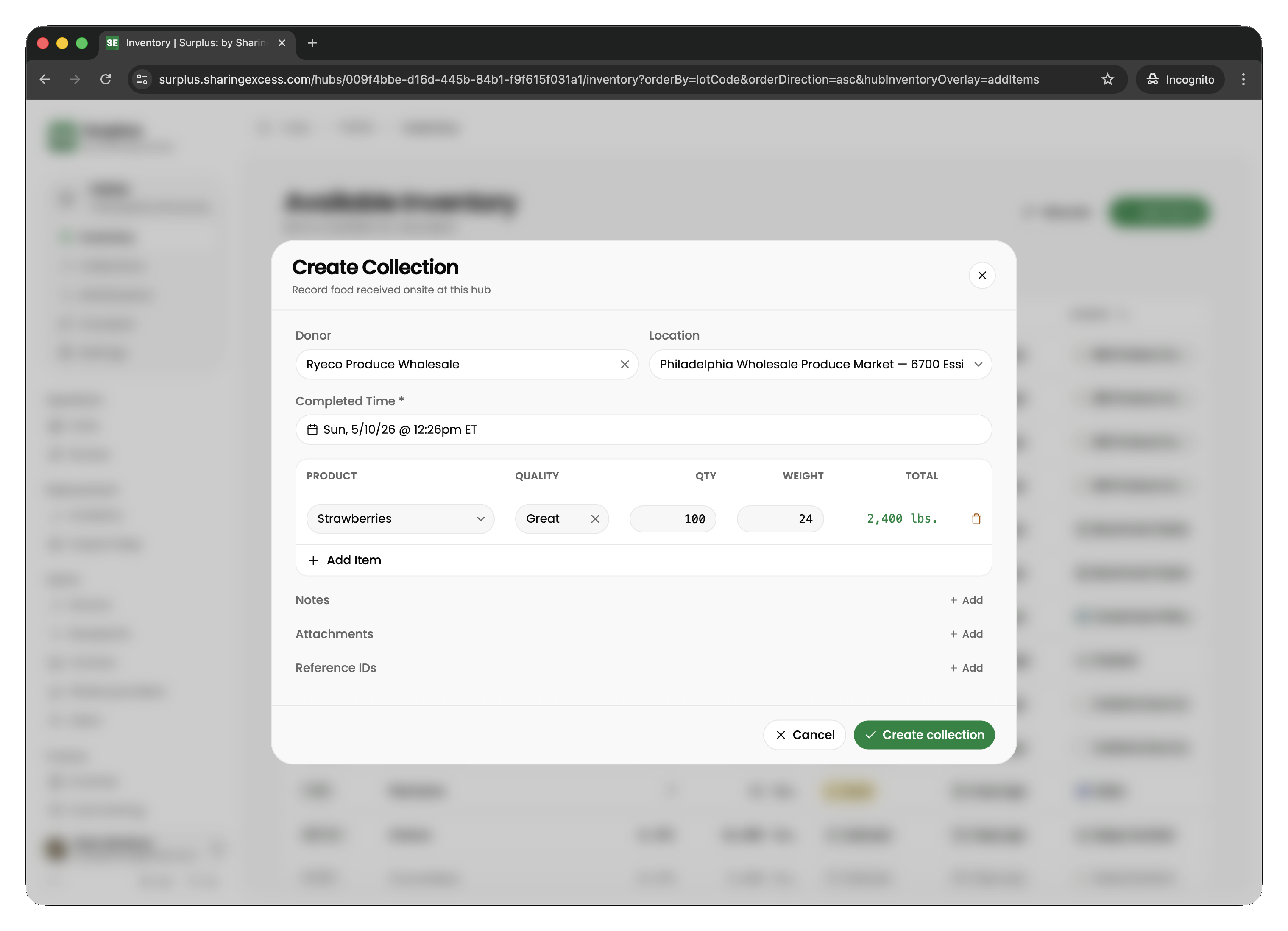
When a donor drops food off directly at a hub (rather than having it picked up on a route), you record it as a hub collection (also called a market collection or onsite collection).
Creating a hub collection
From the hub's Collections tab:
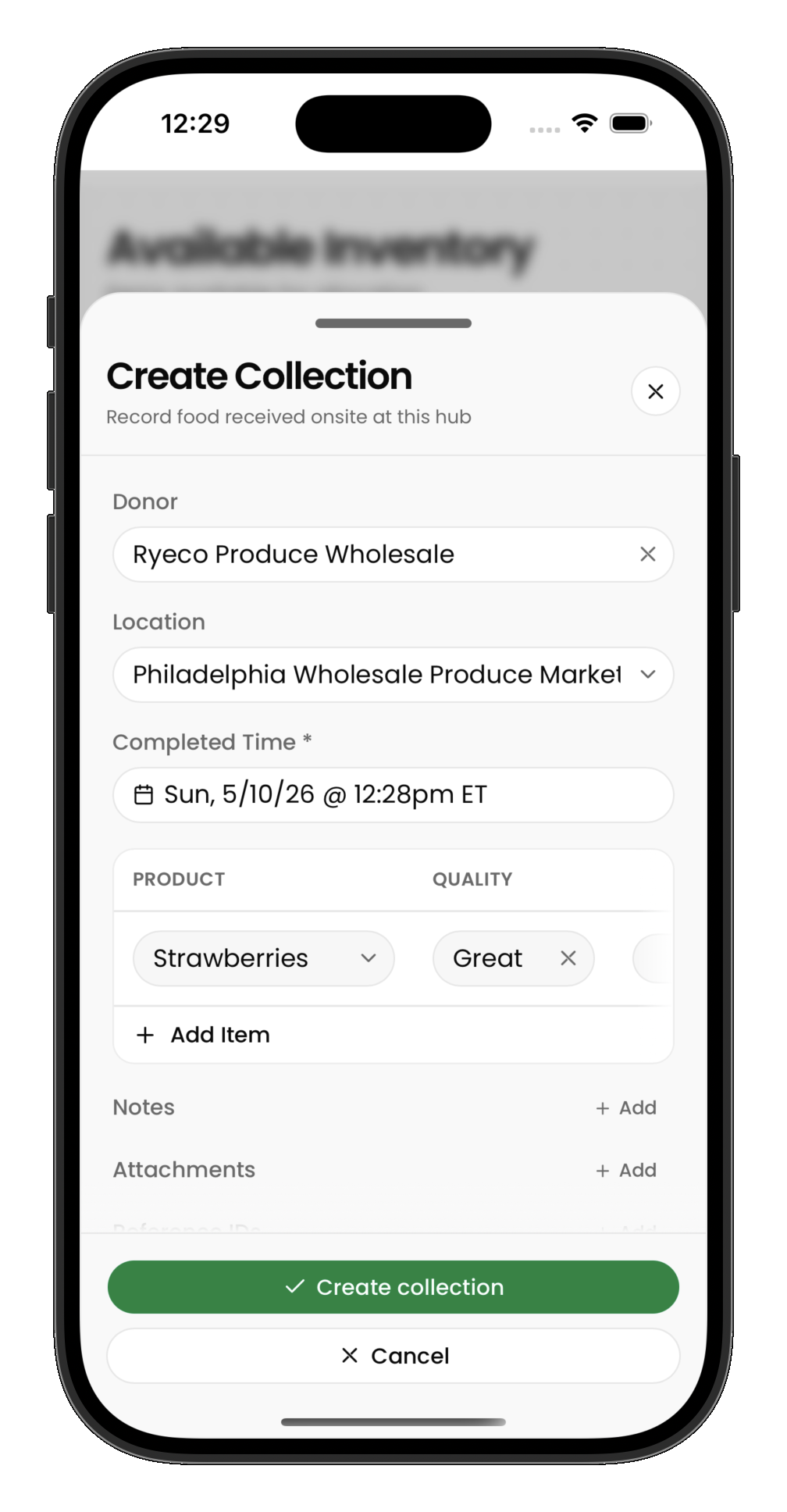
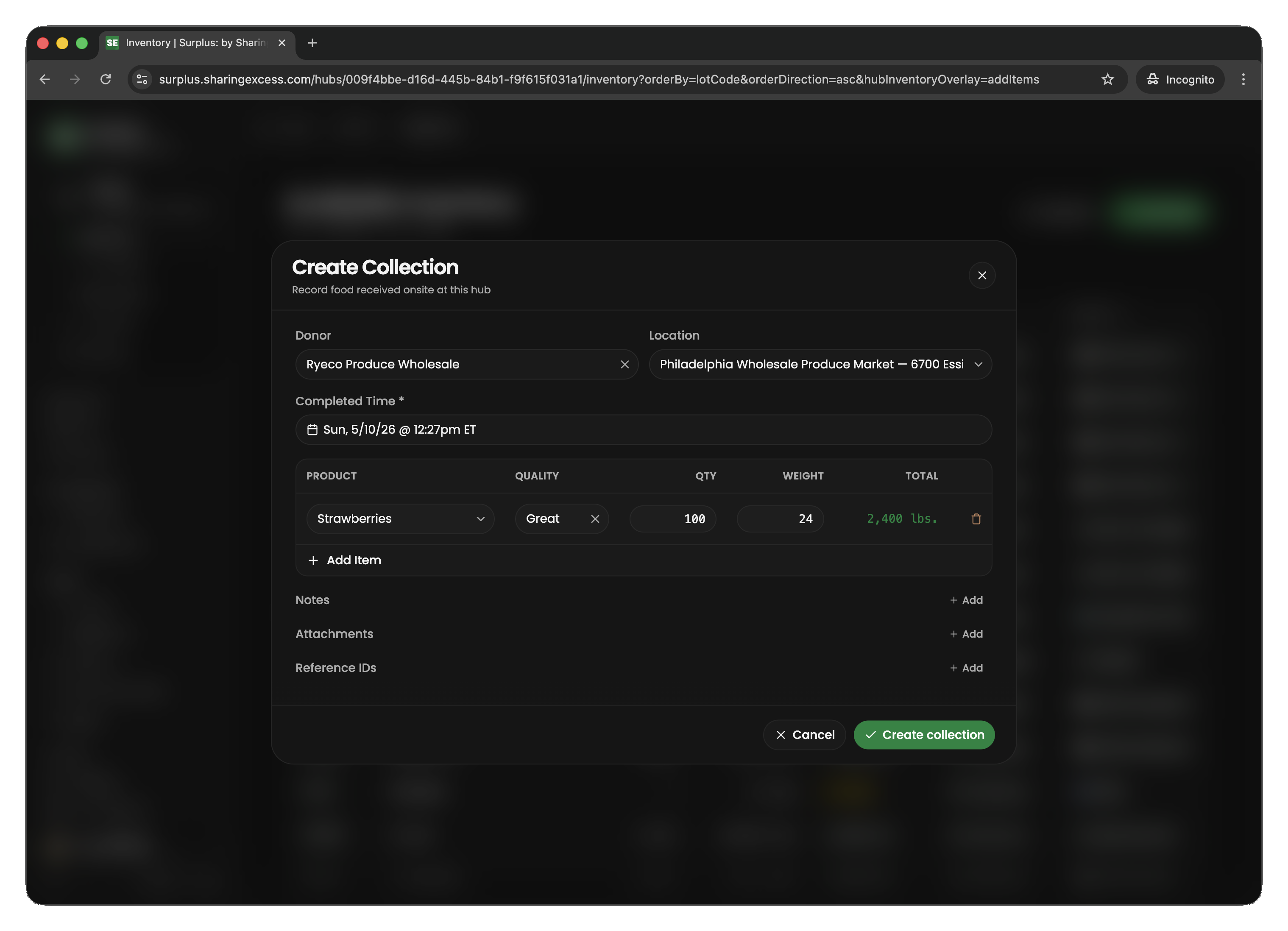
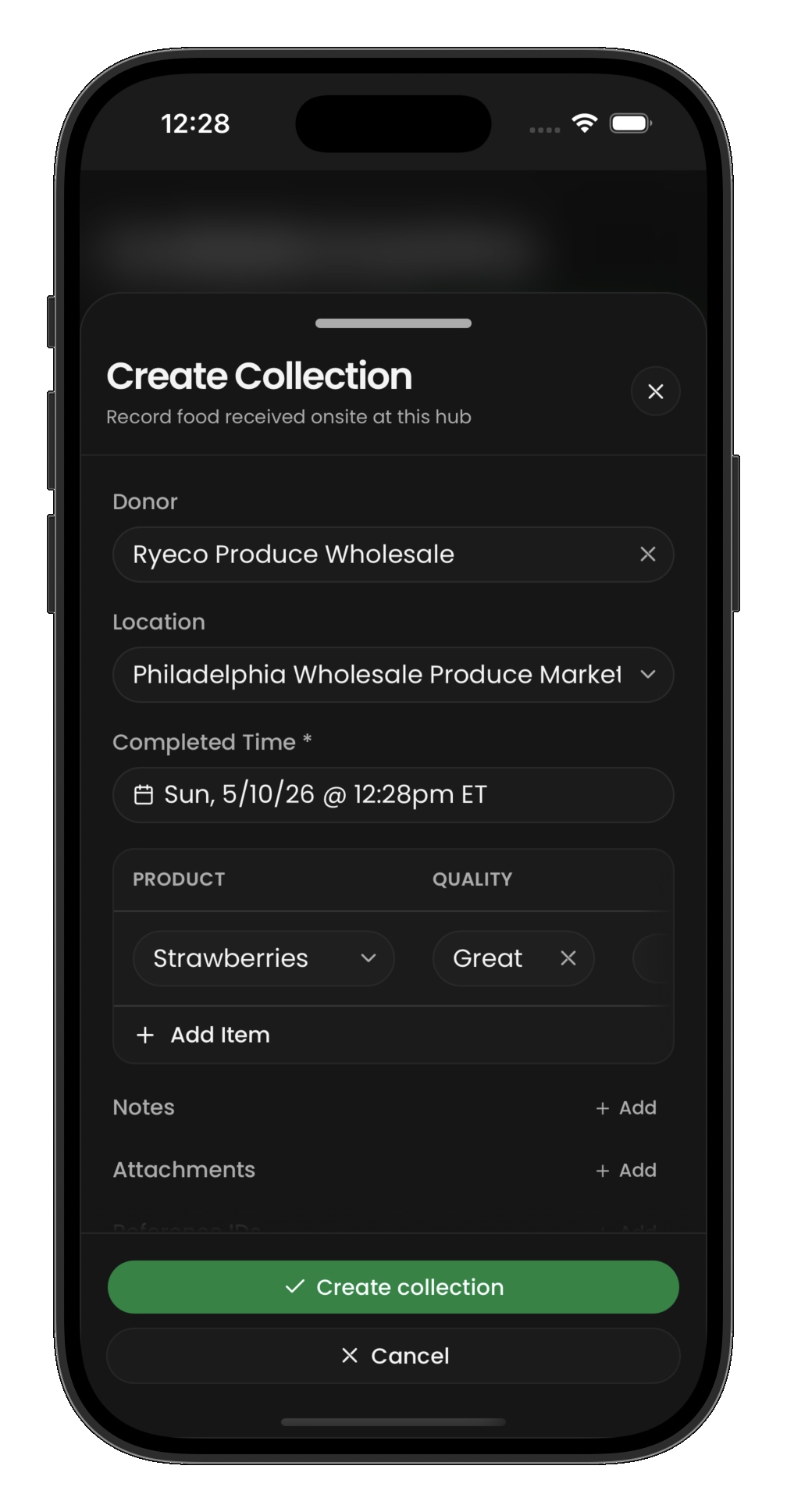
- Tap Create collection
- Select the donor and donor location
- Add donation lines — for each product, enter the product type, quantity, and weight
- Save and complete the collection
The collections list
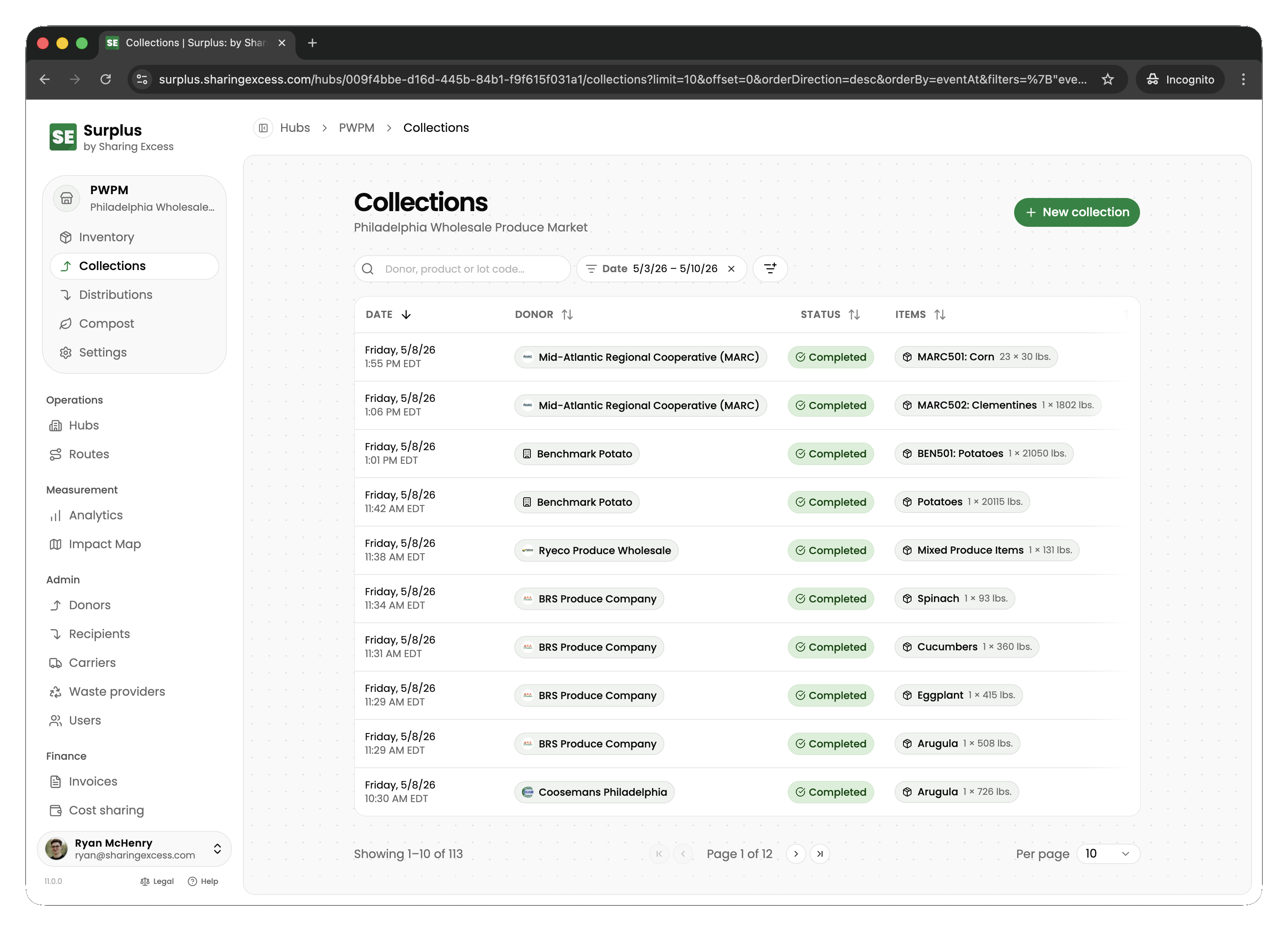
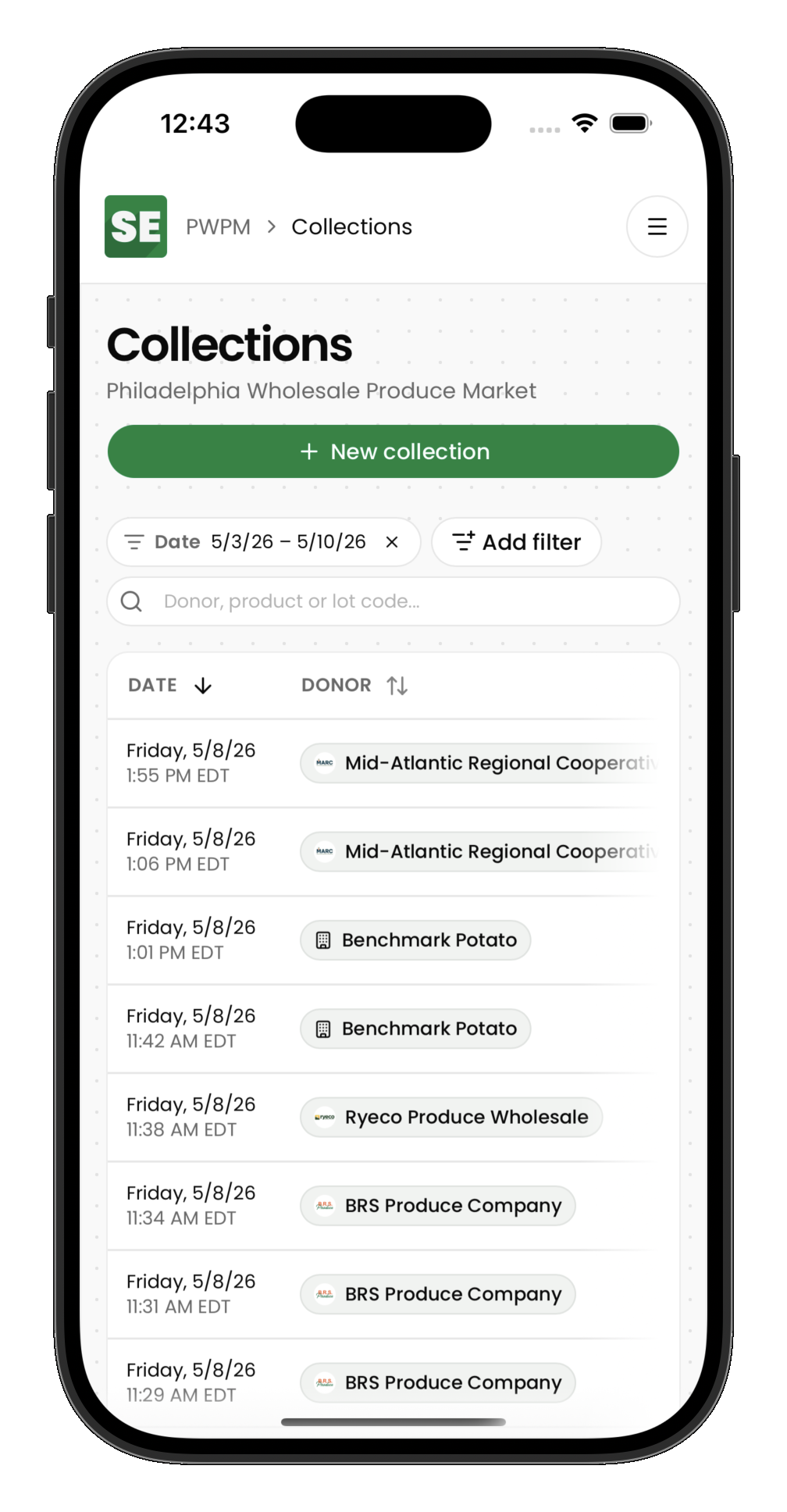
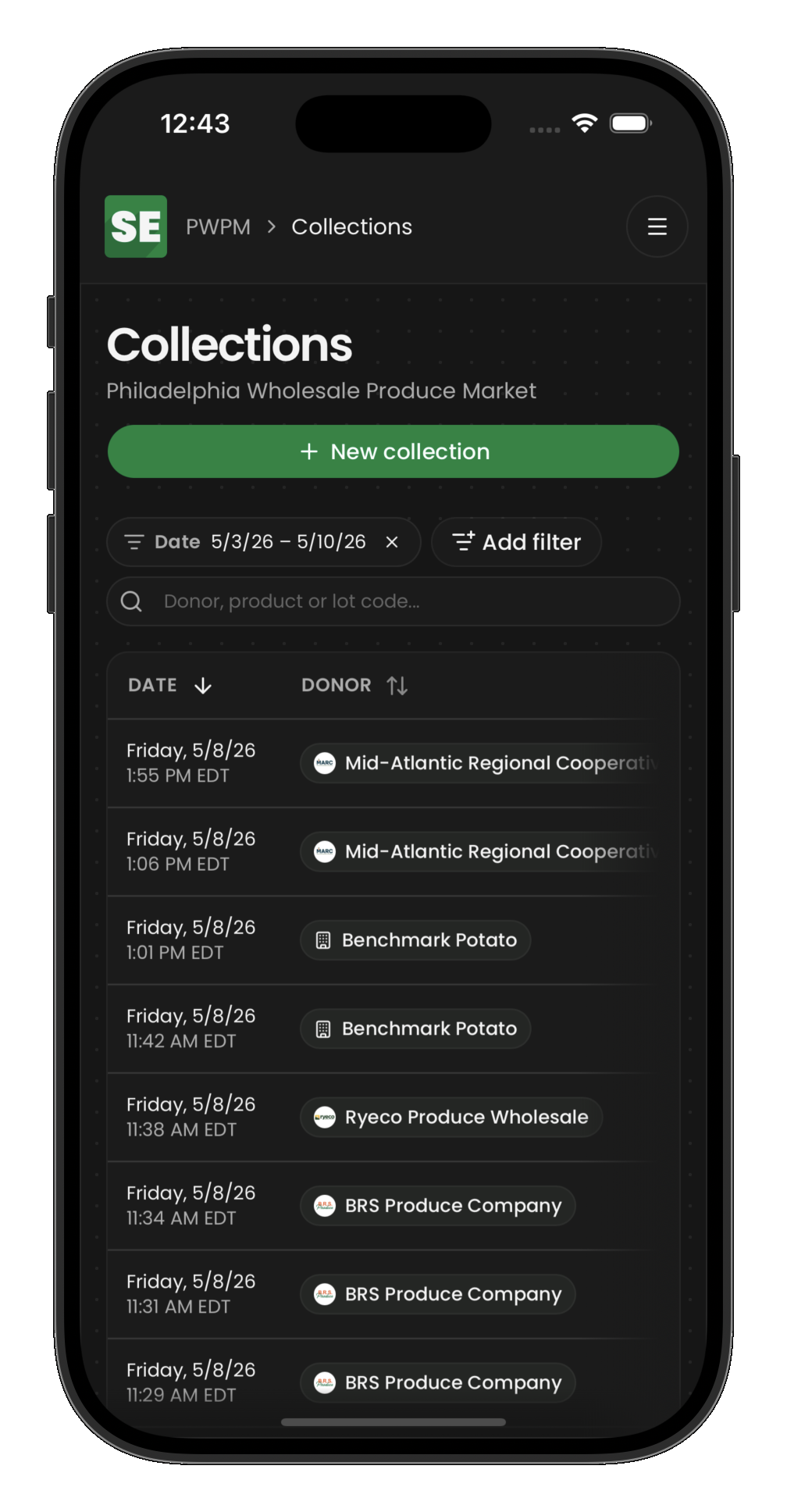
The collections tab shows all collections at this hub — both completed and scheduled. Each entry shows the donor, date, and total weight.
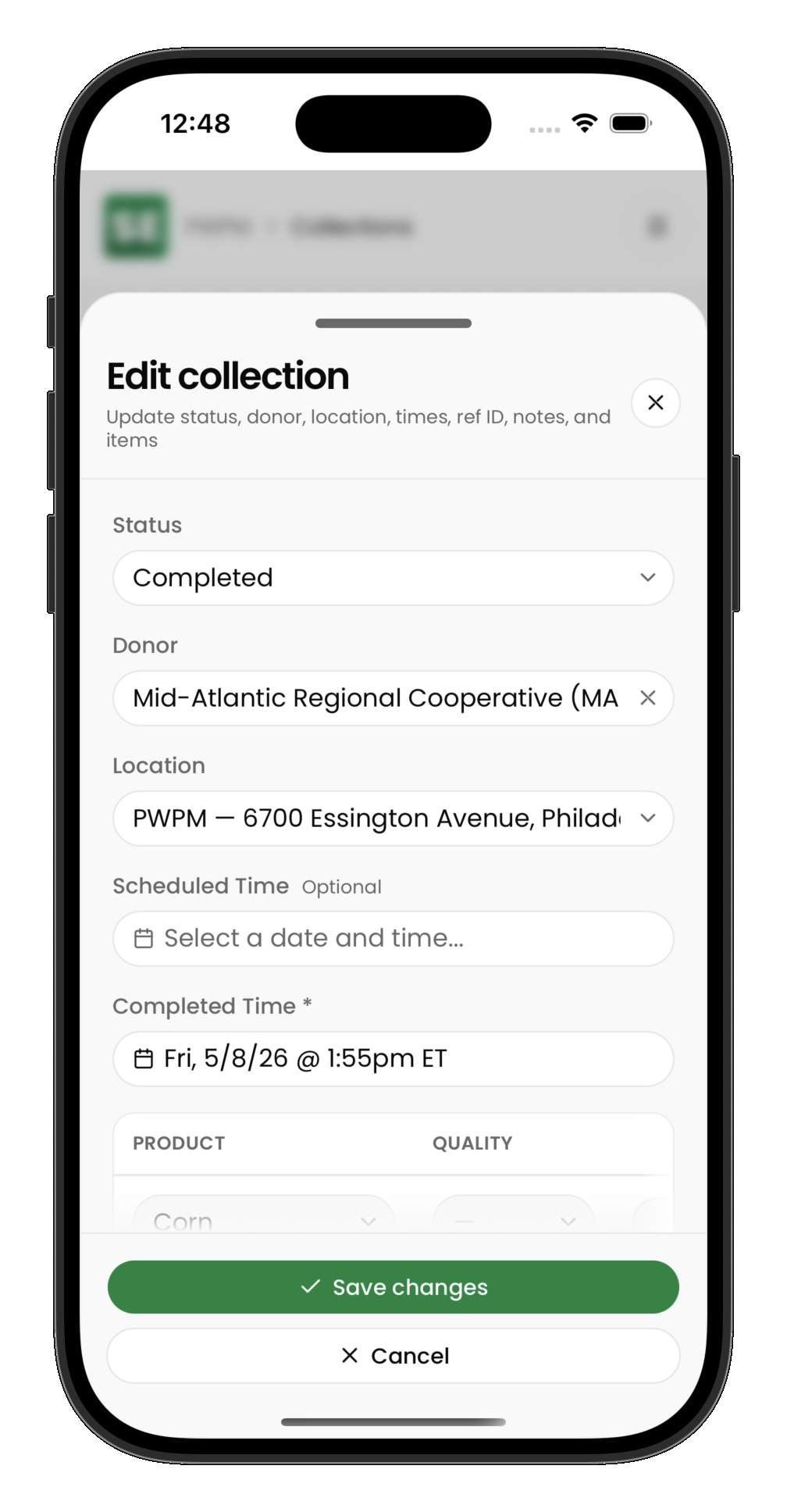
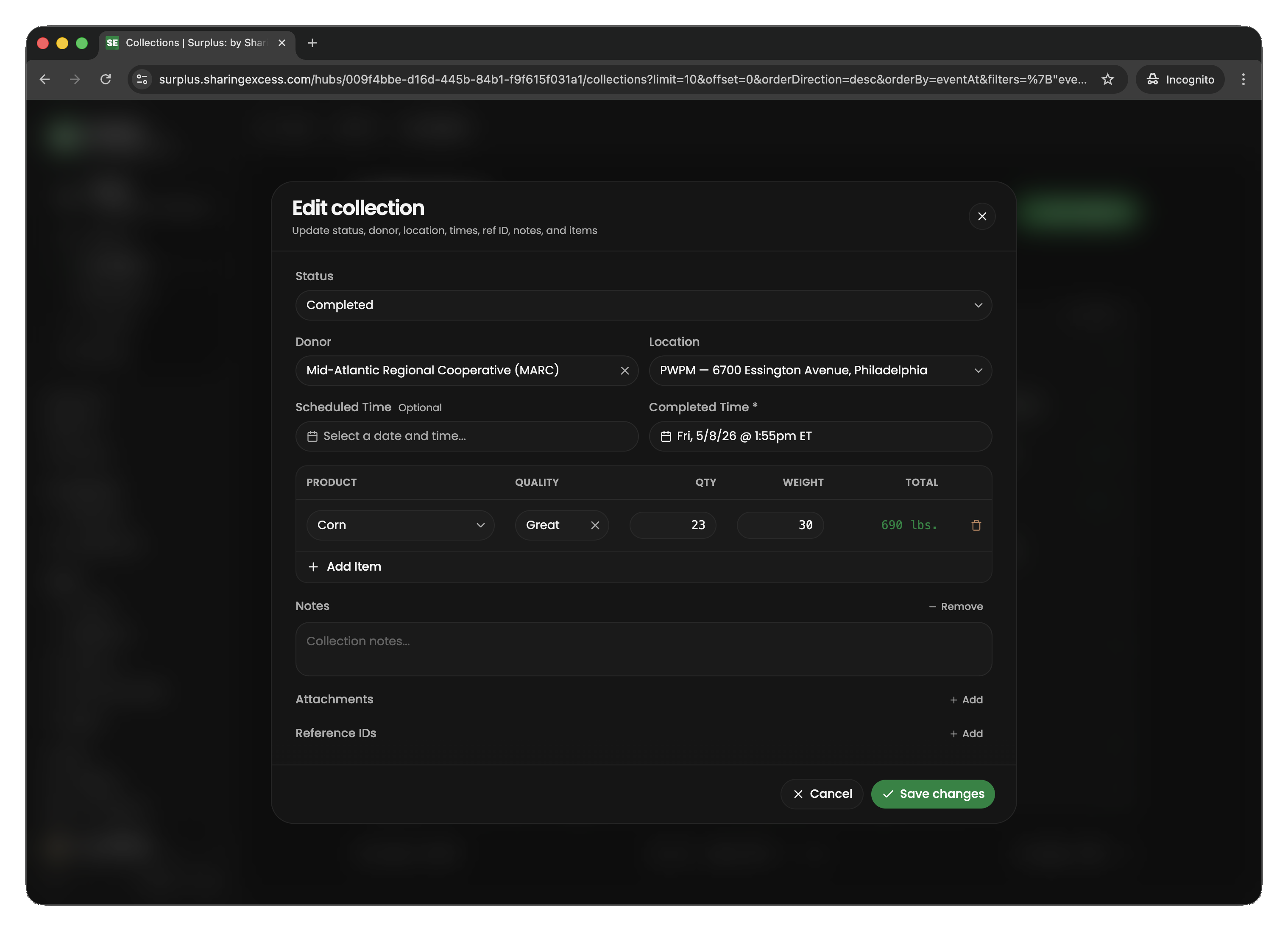
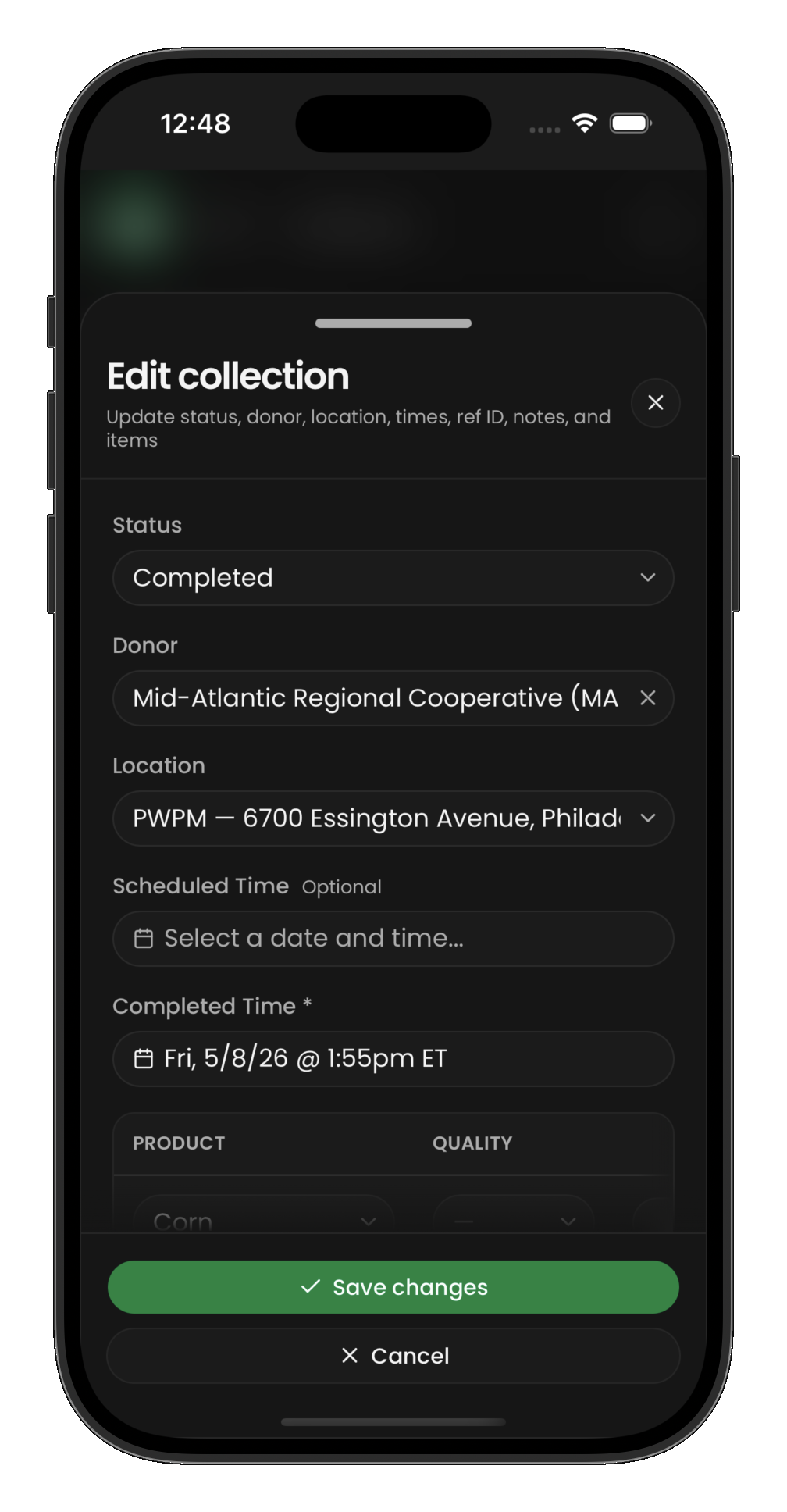
Editing a collection
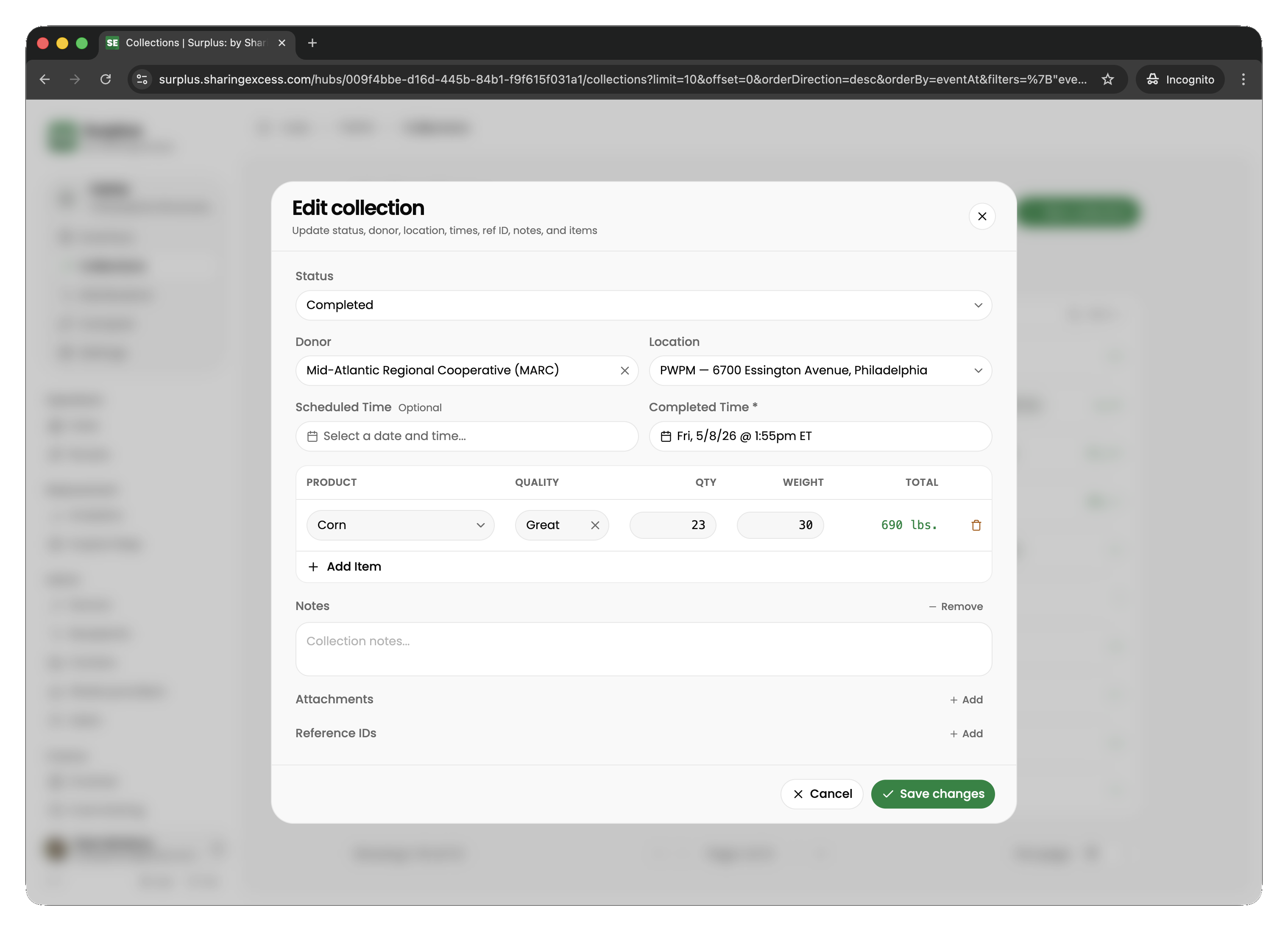
Open a completed collection to edit its details:
- Adjust donation line quantities and weights
- Add or remove product lines
- Update donor information
- Add attachments (photos, receipts)
What happens when you save
When a hub collection is created and completed:
- Collection event items are created — the permanent donation receipt
- Items are created in hub inventory — one per donation line, status
active, located at this hub - These items are immediately available for sorting, allocation, or transfer
Correcting errors
If a collection was recorded with incorrect data:
- Edit quantities/weights — adjustments cascade to item partitions while maintaining conservation
- Delete lines — removes both the collection event item and its inventory item (only if the item hasn't been allocated or moved downstream)
- Un-complete (admin) — returns the event to
scheduledstatus; items remain but can be modified
Route collections vs hub collections
| Aspect | Route collection | Hub collection |
|---|---|---|
| How food arrives | Driver picks up on a route | Donor drops off at hub |
| Who records it | Driver at the stop | Hub staff in the hub UI |
| Where items go | On the route vehicle (routeId) | In hub inventory (hubId) |
| Event type | route | market |