
Managing routes
Routes are the backbone of field logistics in Surplus. As an admin, you create routes, assign drivers, configure stops, and monitor execution.
The routes list
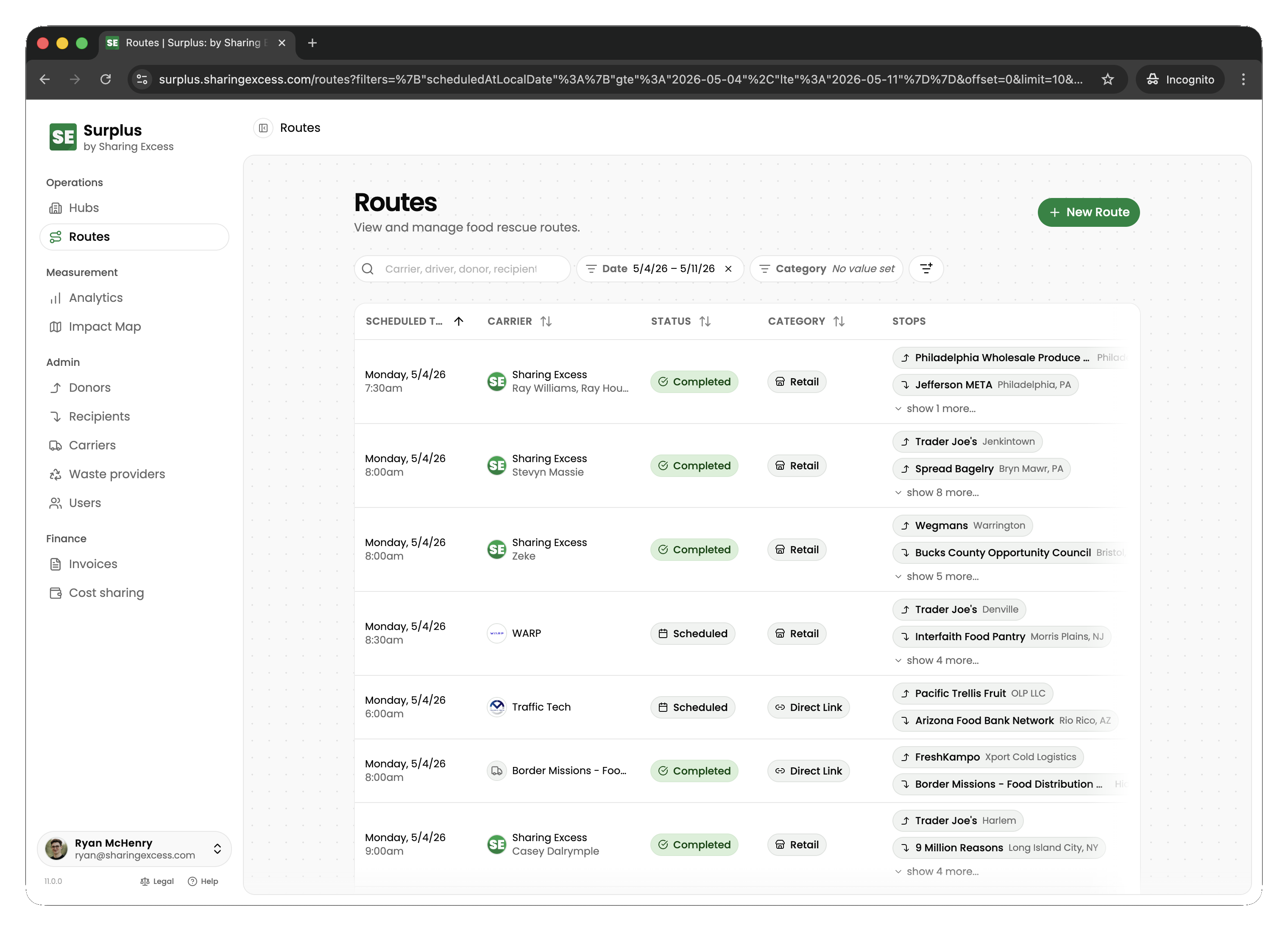
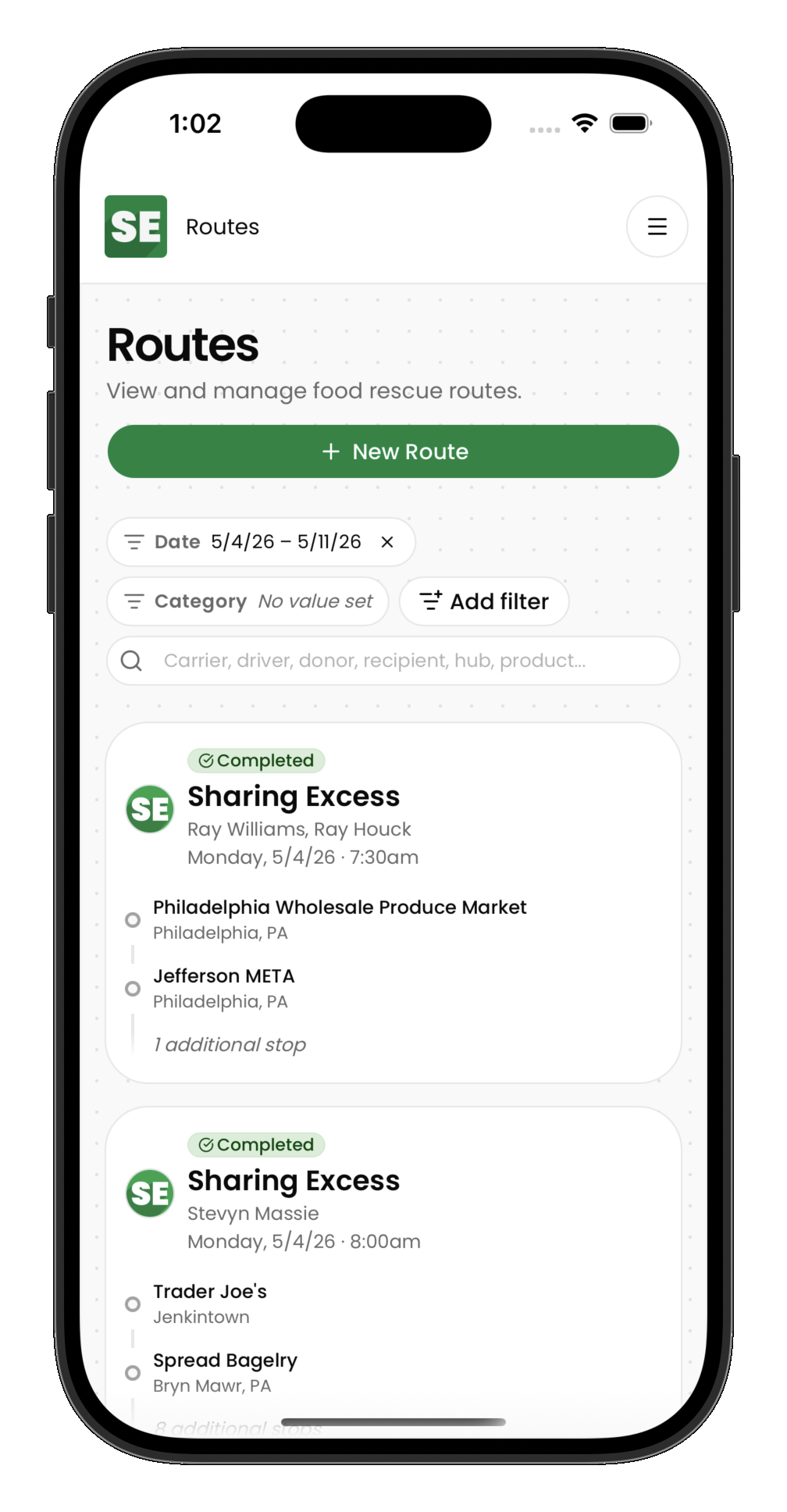
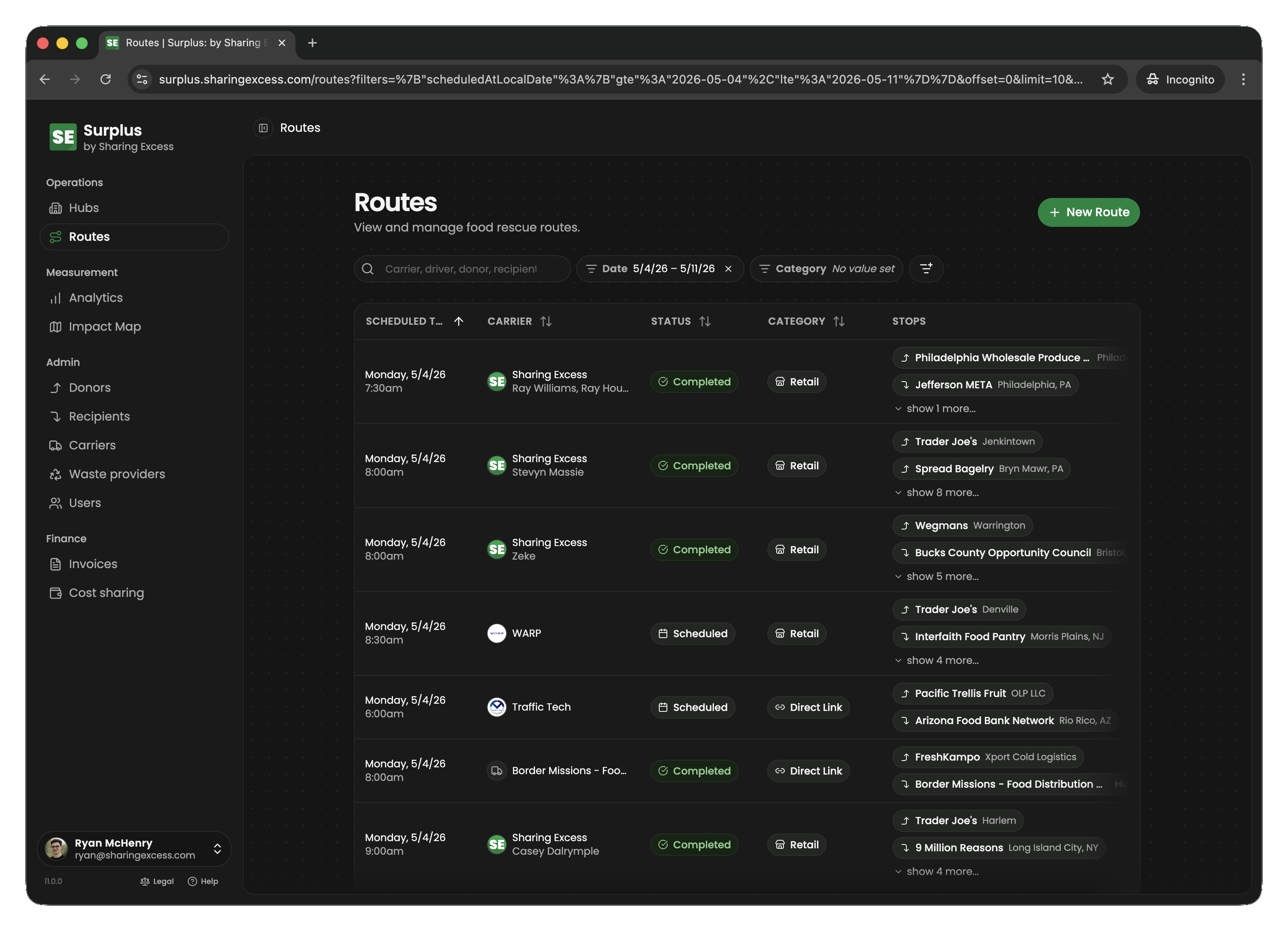
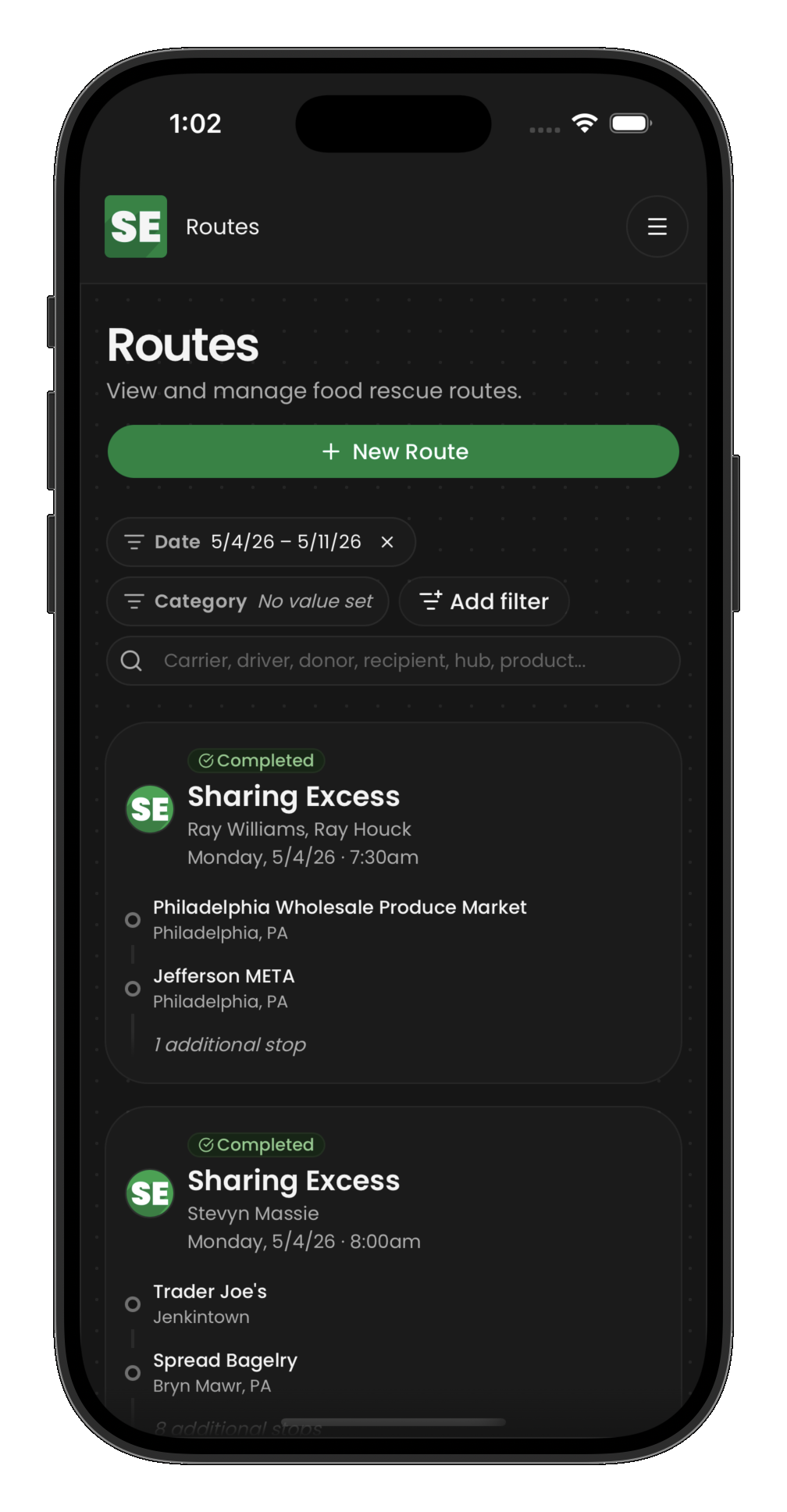
The routes section shows all routes in the system, filterable by date, status, and other criteria. Each route card shows its date, stop count, assigned drivers, and current status.
Creating a route
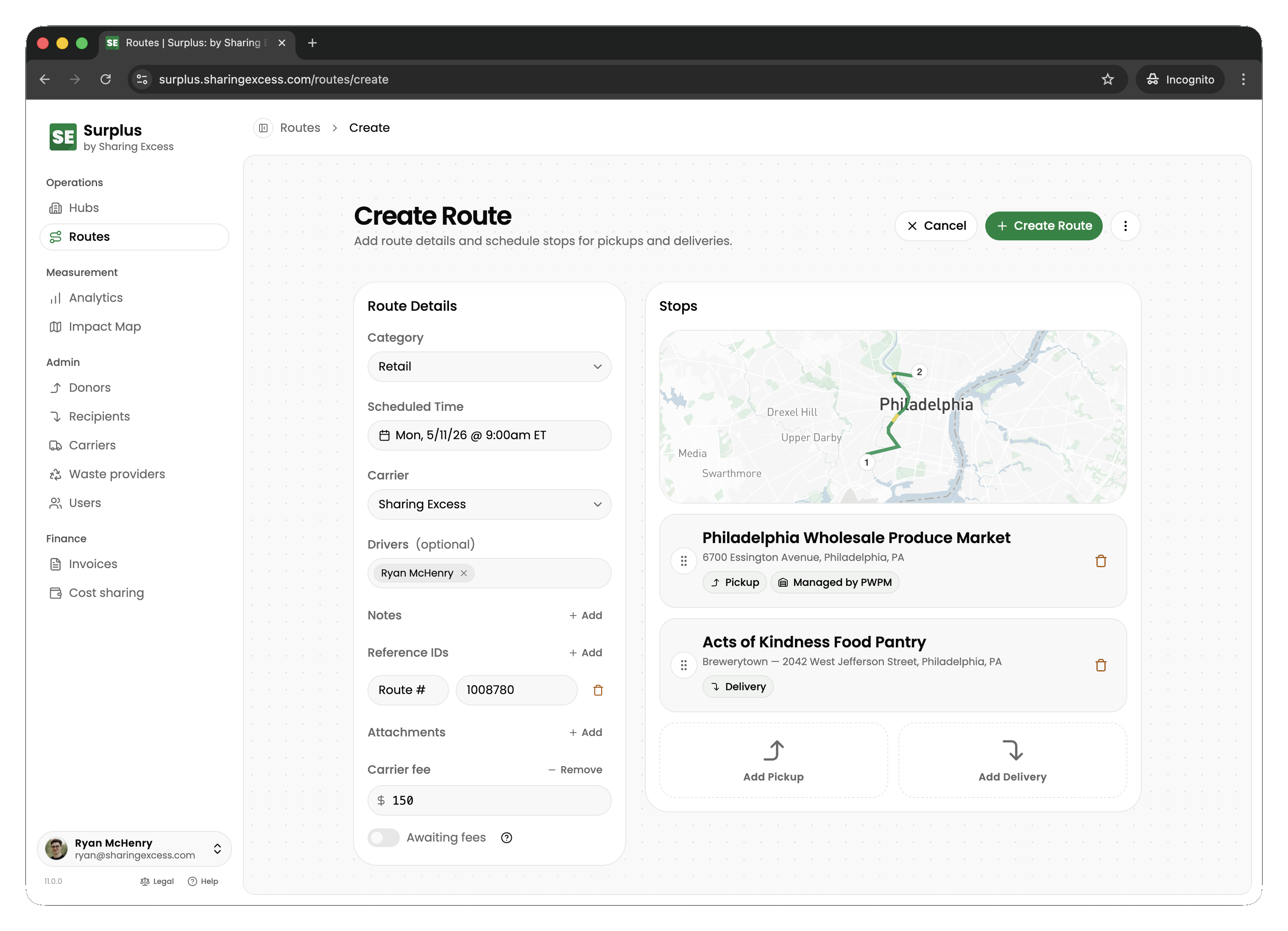
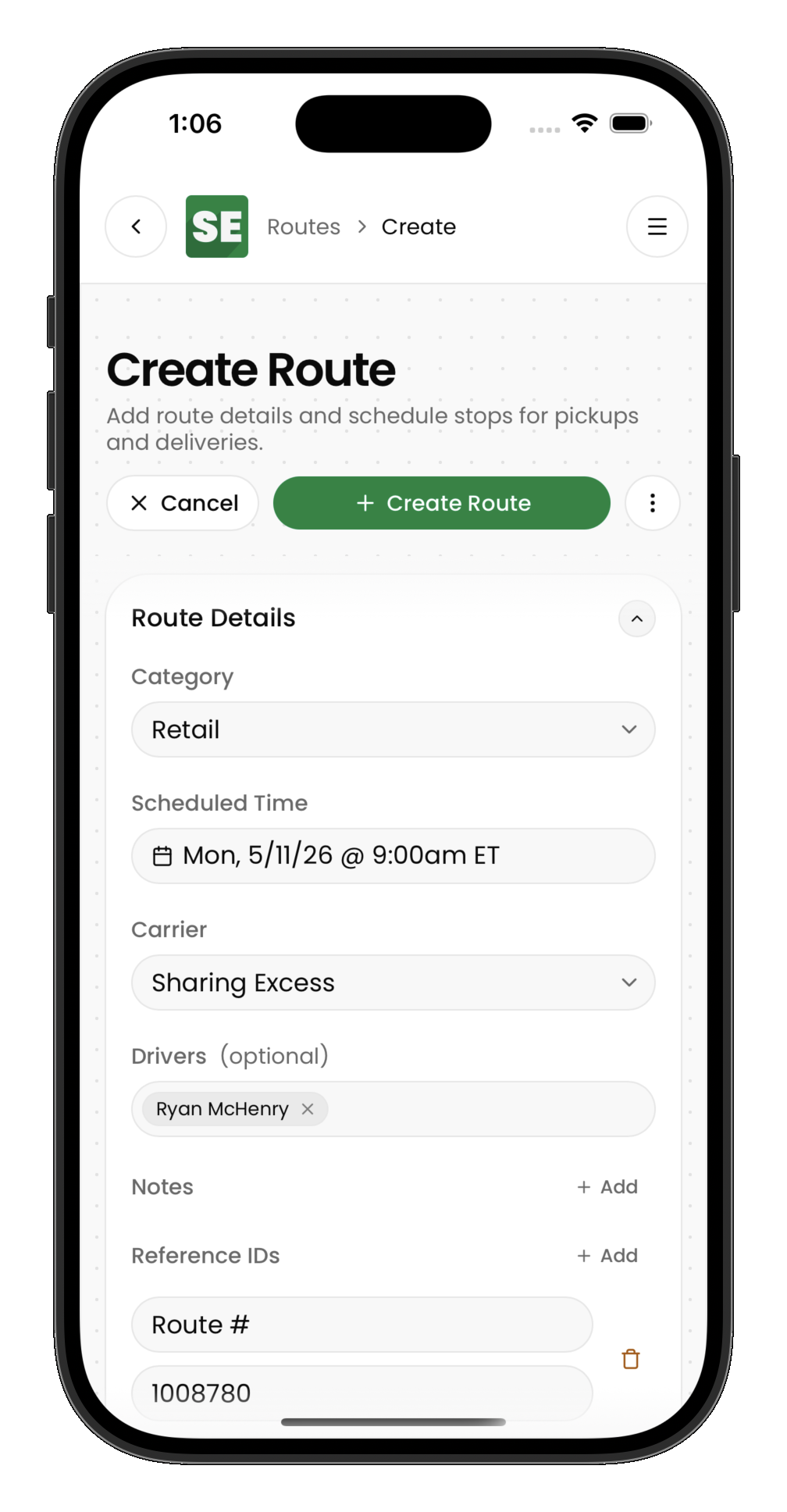
To create a new route:
- Open the routes section and tap Create route
- Set the scheduled date and time
- Optionally assign a carrier and drivers
- Add stops in the desired sequence
Stop types
Each stop you add must be one of:
| Type | Purpose |
|---|---|
| Collection | Pick up food from a donor location |
| Distribution | Deliver food to a recipient location |
| Load | Pick up staged inventory from a hub |
| Unload | Drop off items at a hub |
Stop ordering
Stops execute in sequence. Consider the logical flow:
- Collections before distributions (you need food before you can deliver it)
- Loads before distributions that reference that hub (hub-connected deliveries require the load to happen first)
- Unloads after collections if food needs to go through a hub before redistribution
Driver assignment
- Drivers must belong to the route's carrier (if a carrier is set)
- A route can have multiple drivers
- Routes without drivers can still be created and assigned later
Route detail view
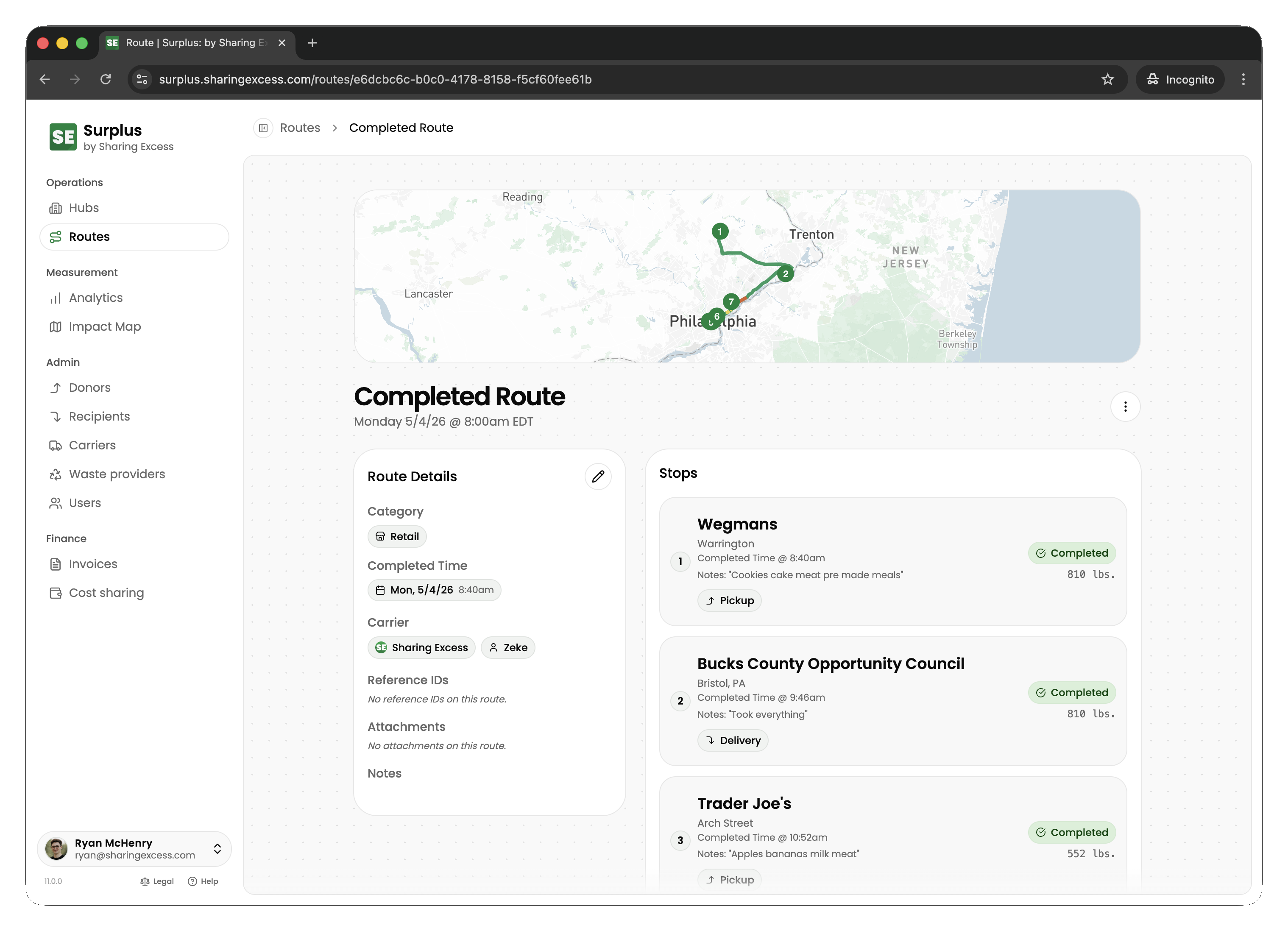
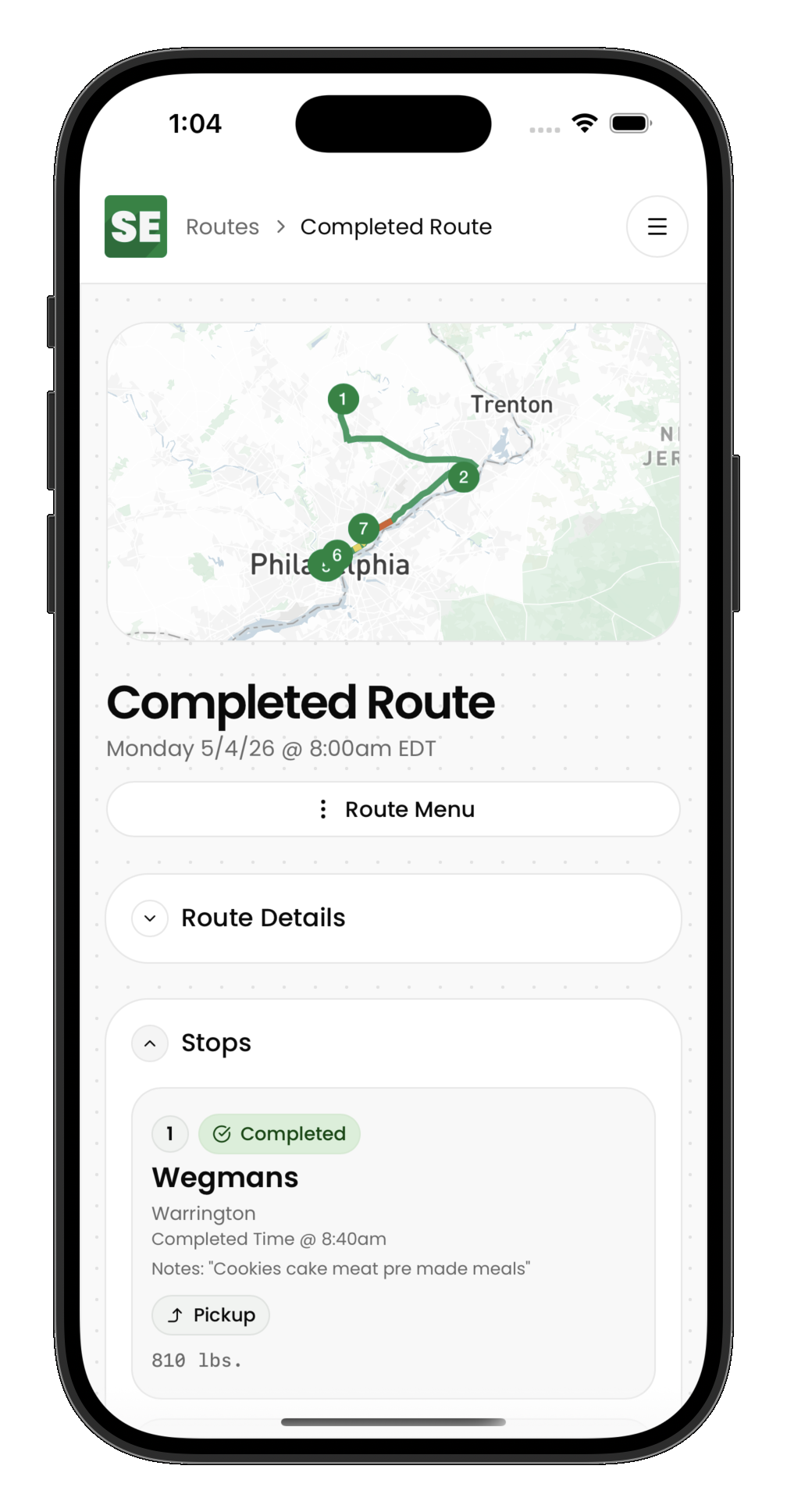
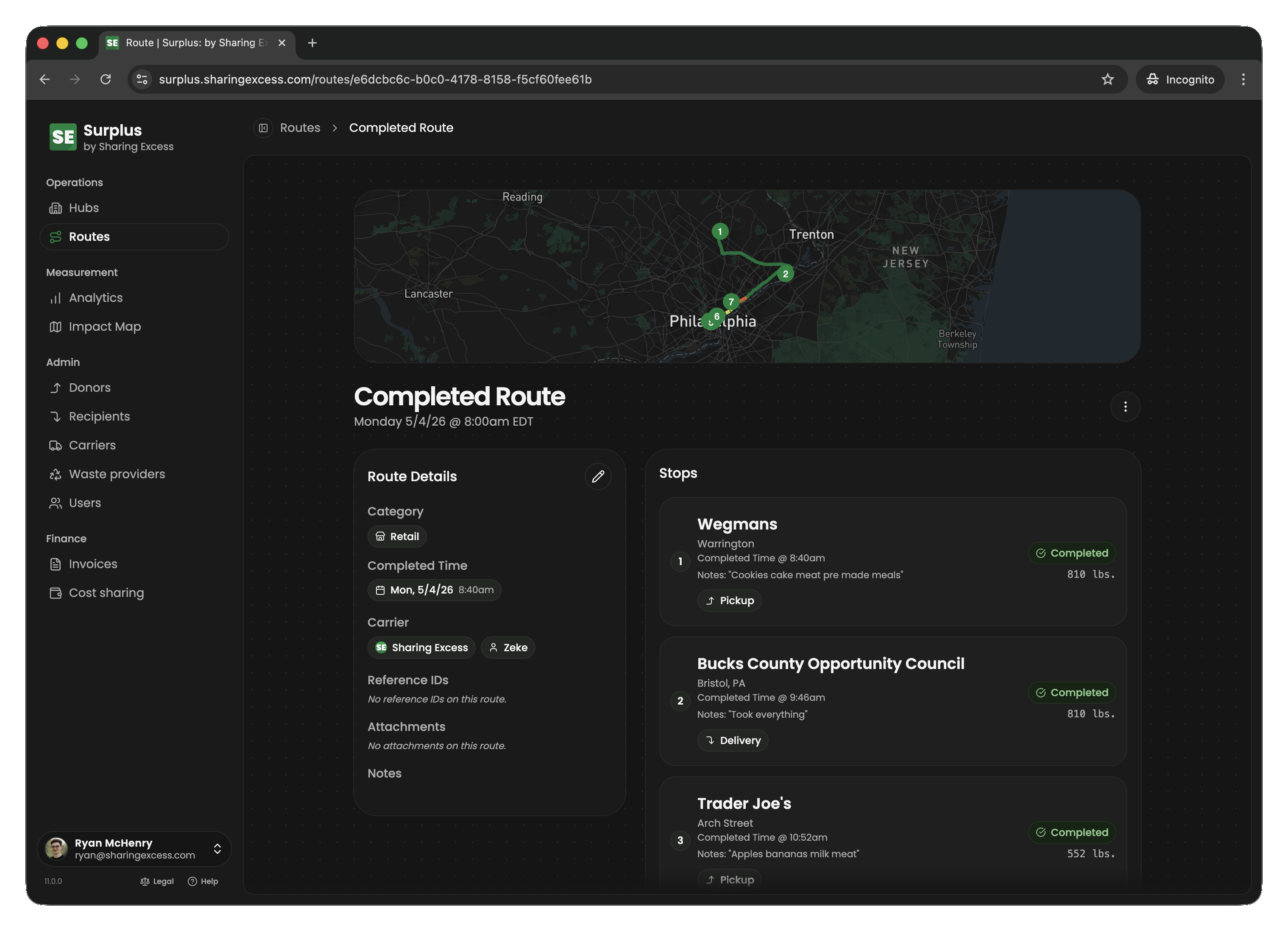
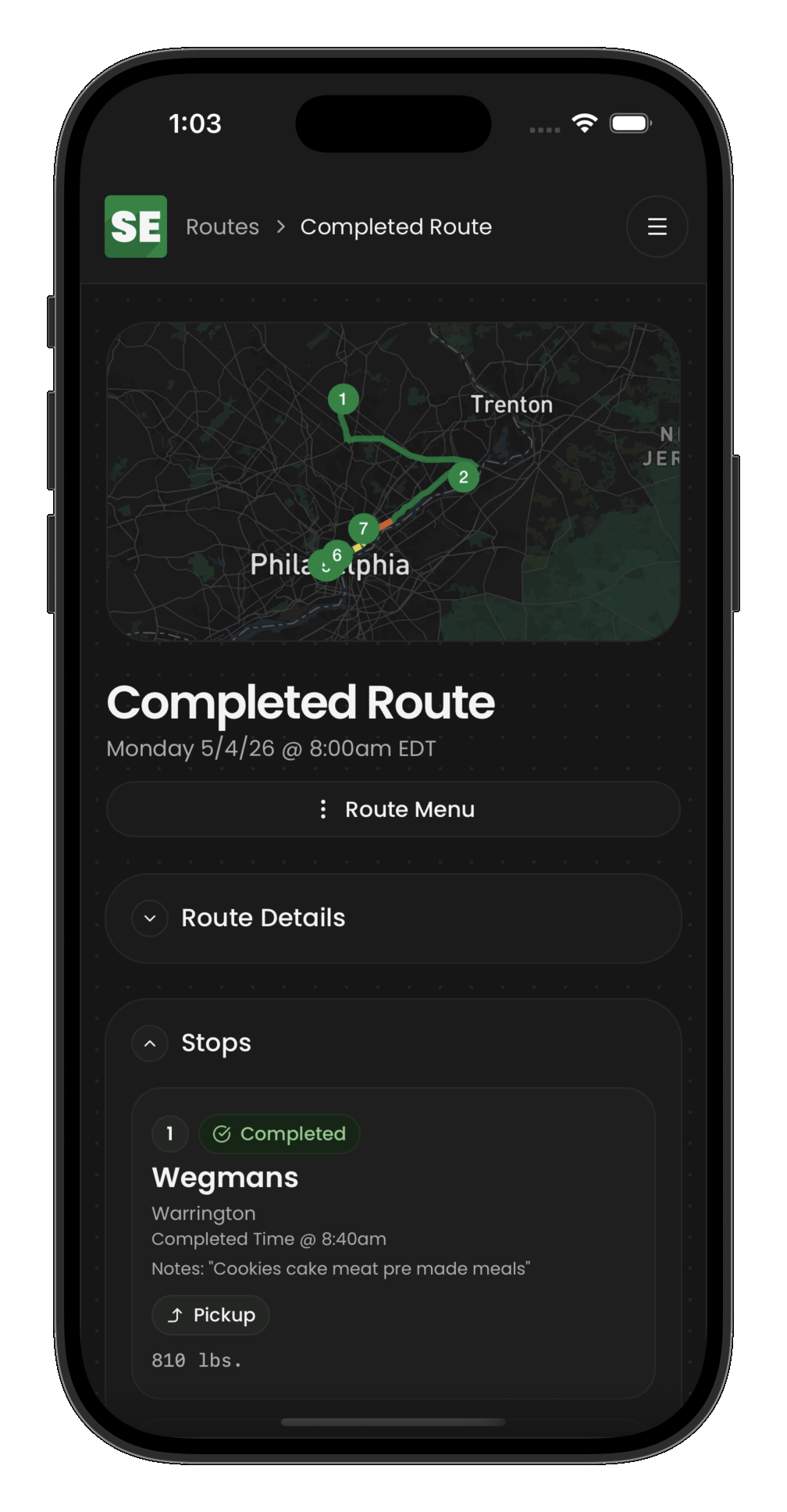
Once created, the route detail shows all stops, their status, assigned drivers, and timing information.
Route lifecycle
| Status | Meaning | Transitions |
|---|---|---|
| Scheduled | Planned, not started | → Active, → Cancelled |
| Active | In progress (driver is on the road) | → Completed, → Cancelled |
| Completed | All stops done, vehicle empty | → Active (admin or driver un-complete — drivers from driver route detail) |
| Cancelled | Abandoned (terminal) | None |
Activating a route
A route moves to active when the driver starts it. This signals the operation is underway.
Completing a route
A route can only be completed when:
- All non-cancelled stops are
completed - At least 2 non-cancelled stops exist
- The vehicle is empty (no items with
routeIdset)
Cancelling a route
Cancelling a route is a significant action that:
- Cancels all child events (collections, distributions, loads, unloads)
- Returns hub-sourced inventory to its original warehouse
- Removes any remaining on-vehicle items
Use cancellation when a route truly cannot be executed — not for minor adjustments.
Administrative actions
Un-completing a route
If a completed route has errors, admins can un-complete it from the full route detail (overflow menu) to return it to active. Assigned drivers can tap Re-open route from the driver route detail for the same effect. Either way the route becomes active so stops can be modified or un-completed individually (where policy allows).
Editing stops
On a scheduled or active route, admins can:
- Reorder stops
- Add or remove stops
- Cancel individual stops
- Modify stop details (donor, recipient, hub assignments)
Cost sharing and carrier fees
Routes carry an optional carrier fee and an awaiting fees state; collection and distribution stops can override default cost share rates from the donor or recipient agreement. See Cost sharing and carrier fees for how CSAs, overrides, carrier fees, and invoicing fit together.